
Not Just For WiFi: The 7 Hidden Router Features Hiding in Plain Sight
If you’re anything like me, you’re always hunting for hidden router features to optimize your home network, clean up your homelab rack, and save money on extra hardware. Usually, that means looking into dedicated network-attached storage (NAS) boxes, stand-alone VPN appliances, or running a dozen different Docker containers on a mini PC just to manage your network traffic.
But here’s a quick truth bomb for you: that dusty plastic box sitting on your shelf handling your Wi-Fi? It’s probably hiding a massive suite of features you aren’t even using.
Before you spend your hard earned money on specialised gear, let’s look at some rock-solid things your stock Wi-Fi router can likely do right out of the box. I use an ASUS router, but these great features aren’t exclusive to ASUS and you may find them on your own router.
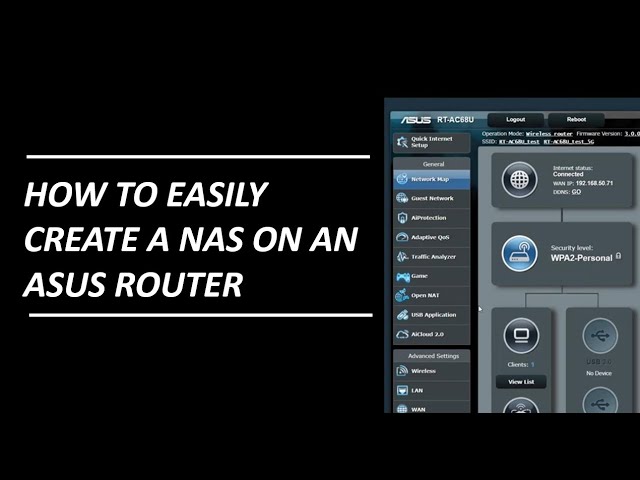
1. The Budget NAS: Share a Drive Across Your Network
If you’ve peeked at the back of your router lately, you’ve probably noticed a USB port or two sitting right next to the Ethernet jacks. No, those aren’t just for factory diagnostics or charging your phone in an emergency.
If you plug a standard external hard drive or a solid flash drive into that port, most modern routers will let you enable SMB (Server Message Block) sharing.
The Verdict: Is it going to replace a dedicated, high-speed RAID array with 10GbE connectivity? Absolutely not. Unless you’re running a brand new Wi-Fi 6E or Wi-Fi 7 rig, your file transfer speeds are going to be a bit sluggish. But if you just need a central spot to dump family photos, back up a couple of laptops, or stream media across the house on a budget, it’s a brilliant, free way to get started with network storage.
Watch My Video for Setting Up Your Budget NAS on an ASUS Router
2. Network-Wide DNS Filtering (No Pi-hole Required)
I love a good DIY project like a custom Pi-hole or a Technitium DNS server to block trackers and sketchy websites across the house. But let’s be honest: maintaining a custom DNS server takes a bit of time, and if it goes down while you’re away, you’re going to get an earful from the family.
Your router handles 100% of the web traffic entering and leaving your house, making it the perfect point to filter the internet.
The Quick Fix: Instead of setting up a separate machine, just log into your router’s admin panel and change your WAN DNS settings. You can point them to a free, pre-filtered service like OpenDNS Family Shield using these two IPs:
208.67.222.123208.67.220.123
Boom. Instantly, the dark corners of the web are blocked at the router level for every single phone, tablet, and smart TV in the house—zero extra hardware required.
3. Whole-Home VPN Client and Server
A lot of people pay for a premium VPN service and then go through the absolute chore of installing the client app on their phone, their laptop, their iPad, and their streaming sticks.
Instead, look for a feature in your router settings called VPN Client. If your router supports it, you can input your VPN credentials directly at the source. This routes all your home’s internet traffic through an encrypted tunnel in one go—perfect for bypassing ISP snooping or masking your region.
The Reverse Trick: On the flip side, look for a VPN Server feature (like OpenVPN or WireGuard built into the firmware). When I’m traveling or working outside the house, I use this to securely tunnel back into my home network. It lets me access my local servers, security cameras, and smart devices exactly as if I were sitting at my desk. This has been a real game changer for me and is the most secure way I can remotely access everything on my home network.

4. Resurrect Your Ancient Wired Printer
Got an old, rock-solid laser printer that refuses to die but doesn’t have a lick of wireless capability? If it connects via a USB cable, don’t throw it out or buy a costly wireless print server.
Many routers feature a built-in CUPS (Common UNIX Printing System) server. By plugging that old USB printer directly into the router’s USB port and toggling the print server option on, your router will broadcast the printer across your local network. Just like that, your trusty old wired printer becomes fully wireless.
5. Seamless Whole-Home Coverage with ASUS AiMesh
When people get Wi-Fi dead zones in their house, their first instinct is to buy a cheap, nasty Wi-Fi extender (which cuts your speeds in half) or drop hard earned cash on a brand-new, multi-node mesh Wi-Fi system. If you run an ASUS router, you don’t need to do either.
ASUS has a built-in feature called AiMesh baked right into their firmware. Instead of forcing you to buy identical, proprietary mesh pods, AiMesh allows you to mix and match any compatible ASUS routers you have lying around.
The Real Value: Say you just upgraded your main home router to a shiny new Wi-Fi 7 model. Instead of throwing your old Wi-Fi 6 ASUS router in the trash or selling it for pennies on eBay, you can boot it up, set it as an “AiMesh Node,” and place it at the far end of the house.
The main router automatically synchronizes your network configuration (including network name, password, parental controls, and guest networks) to the older router. It forms a single, smart mesh backbone. As you walk across the house, your phone seamlessly hops to the closest node with zero dropouts. It protects your hardware investment and fixes your dead zones completely for free.
I have already covered the AiMesh right here in Built By Pete. Head over read the full AiMesh setup guide. Or if you prefer I have a video walk through.
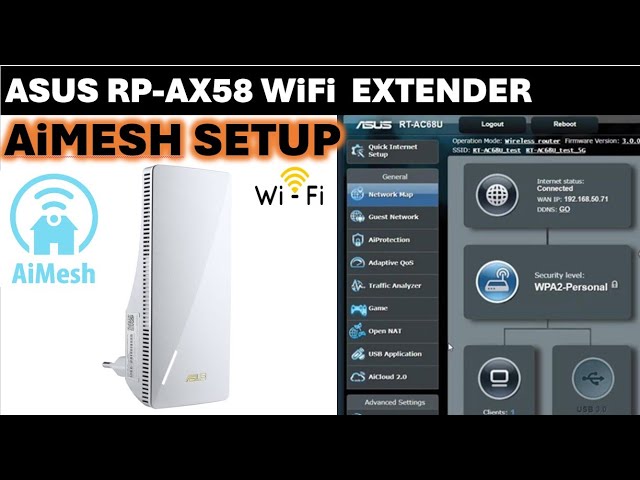
I have installed an AiMesh node in an outside electrical cabinet and now I have great full speed coverage in my back garden. I have put together video showing the garden cabinet with AiMesh over on the Youtube channel. This is also going to help me in my Smart Shed build when adding wireless cameras, smart light switches and temperature sensors.
6. Native Dynamic DNS (Ditch the Docker Containers)
If you run any self-hosted services or a homelab, you know the headache of dealing with a dynamic residential IP address. Your ISP can change your home’s external IP at any moment, breaking your external links.
To solve this, a lot of guys run a separate DDNS Docker container on their server that constantly pings a service like DuckDNS or Cloudflare to update their domain pointer.
But your router is the device that actually receives the new IP from your ISP. Most modern routers have a native DDNS tab. You just plug in your domain registrar details, and the router handles the updates instantly the second your IP shifts. It’s cleaner, faster, and saves you from running background scripts on your homelab machines.
7. Never Lose Your Connection with Unbreakable WiFi
Internet Failover. We’ve all been there: you’re in the middle of an important Zoom call or a gaming session, and suddenly—the internet cuts out. Whether it’s a provider outage or a physical line issue, being offline is more than just an inconvenience; it can disable your home security cameras, smart home automations, and remote work setup.
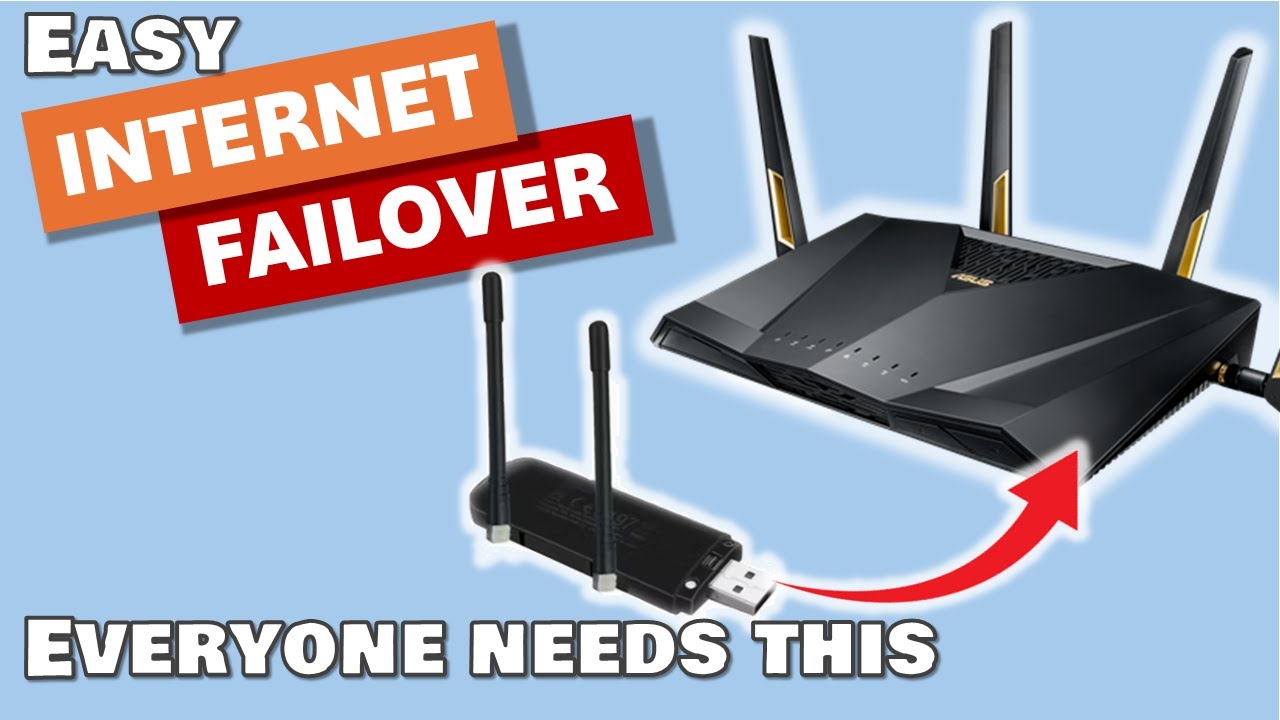
I have configured my ASUS router to detect when the main WAN goes down and automtically to failover to mobile internet through a 4G WiFI dongle attached to ASUS router. check out this guide on setting up Easy Internet Backup & Failover Routing. This tutorial goes step-by-step into adding an alternative mobile gateway link directly into an ASUS router interface so you never lose connection when your main broadband goes down.
The Verdict: having a second way to access the internet has been a real game changer for me. When the main broadband has gone down, not only does all devices in my home continue to have internet access, but more importantly my smart devices and security cameras can still provide me notifications when I’m away from home.
Watch the Step-by-Step Backup WiFi Guide
Hidden Router Features FAQ
Q: Will using my router as a NAS slow down my internet speeds?
A: No, it shouldn’t affect your incoming broadband speeds. However, routing heavy read/write traffic to a USB drive does put a heavier load on your router’s internal CPU. If you are copying a massive 50GB file over the local network while someone else is trying to play latency-critical online games, they might experience a small spike in ping. For basic file sharing and backups, you won’t notice a thing.
Q: I plugged my hard drive into my router, but my PC can’t see it. What’s wrong?
A: This is almost always a drive format issue. Most standard routers cannot read proprietary file systems like Mac’s APFS. For maximum compatibility with router firmware, format your external hard drive or flash drive as exFAT or NTFS on a computer before plugging it into the router. Also, make sure “Network Neighborhood Share” or “SMB” is checked in your router’s USB settings.
Q: Can I use any brand of old router to expand my Wi-Fi mesh network?
A: Unfortunately, true seamless mesh systems are still mostly locked to the same manufacturer. While ASUS AiMesh lets you mix old and new ASUS hardware seamlessly, you can’t use an old Netgear router as a mesh node for an ASUS master router. If you are mixing different brands, your best bet is to look for a setting on the older secondary router called AP Mode (Access Point Mode) and connect them via an Ethernet cable.
Q: Does routing a whole house through a router VPN slow down streaming?
A: It can. Enforcing encryption on every single packet of data entering the house requires decent hardware processing power. If your router has an older or weaker dual-core processor, running a heavy OpenVPN configuration might bottleneck your speeds to 30-50 Mbps. If your router firmware supports WireGuard, use that instead—it’s vastly more lightweight and efficient, meaning it won’t kill your 4K Netflix streams.
The Hidden Router Features Takeaway
Whether you’re running a high-end prosumer system like a UniFi Dream Router, a custom ASUS AiMesh setup, or a standard Netgear box, there is a massive amount of utility baked into the hardware you already own.
Before you spend money on your next tech upgrade, log into your gateway IP address, poke around the advanced settings, and see what kind of power you can unlock for free.
Other Articles You Might Like
- Stop Guessing Your Speed: The Best Internet Speed Tester (My Top Pick)
- DIY Network Status Monitor: Build a Colour-Coded PING Tool in 5 Minutes
- 10 Pro Tips to Increase Your Internet Speed
- Local Network Speed Test (The Easy & Free Way)
Subscribe Now!
If you found this hidden router features guide helpful and are ready to stop guessing and start troubleshooting your own tech and smart DIY, head over to the Built By Pete YouTube channel! We’ve got hundreds of other DIY projects and smart home tutorials. Click here to subscribe and hit the notification bell so you never miss out on the tips, tricks, and step-by-step guides that will simplify your tech life.


