Never Lose Your Connection: Easy Internet Backup with ASUS Dual WAN
Internet Failover. We’ve all been there: you’re in the middle of an important Zoom call or a gaming session, and suddenly—the internet cuts out. Whether it’s a provider outage or a physical line issue, being offline is more than just an inconvenience; it can disable your home security cameras, smart home automations, and remote work setup.
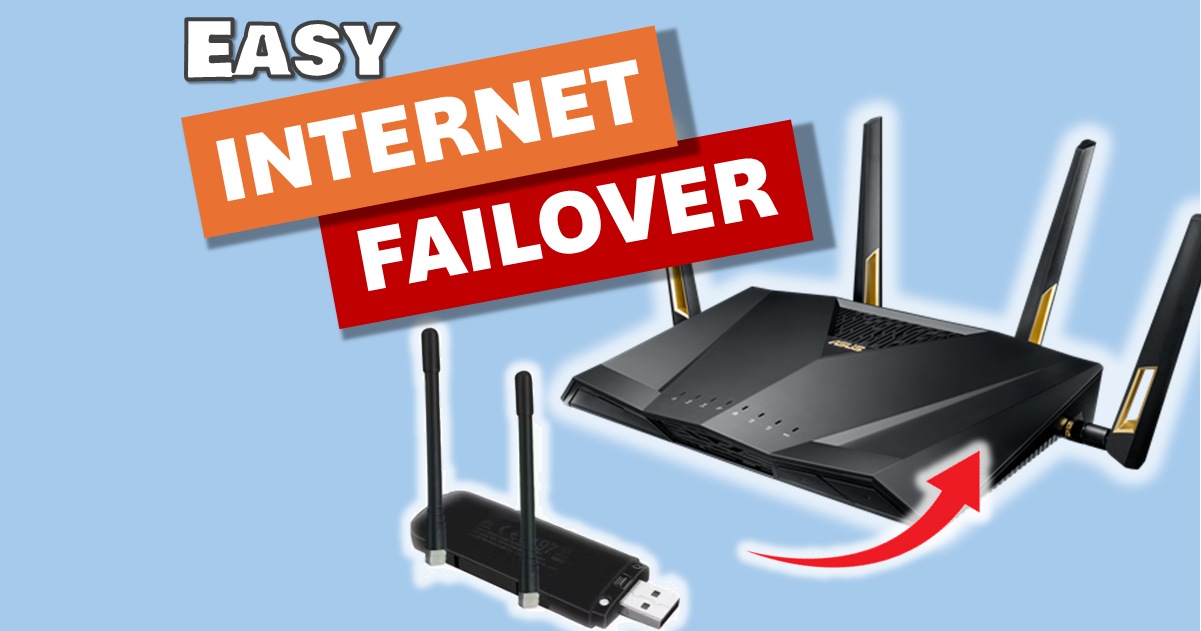
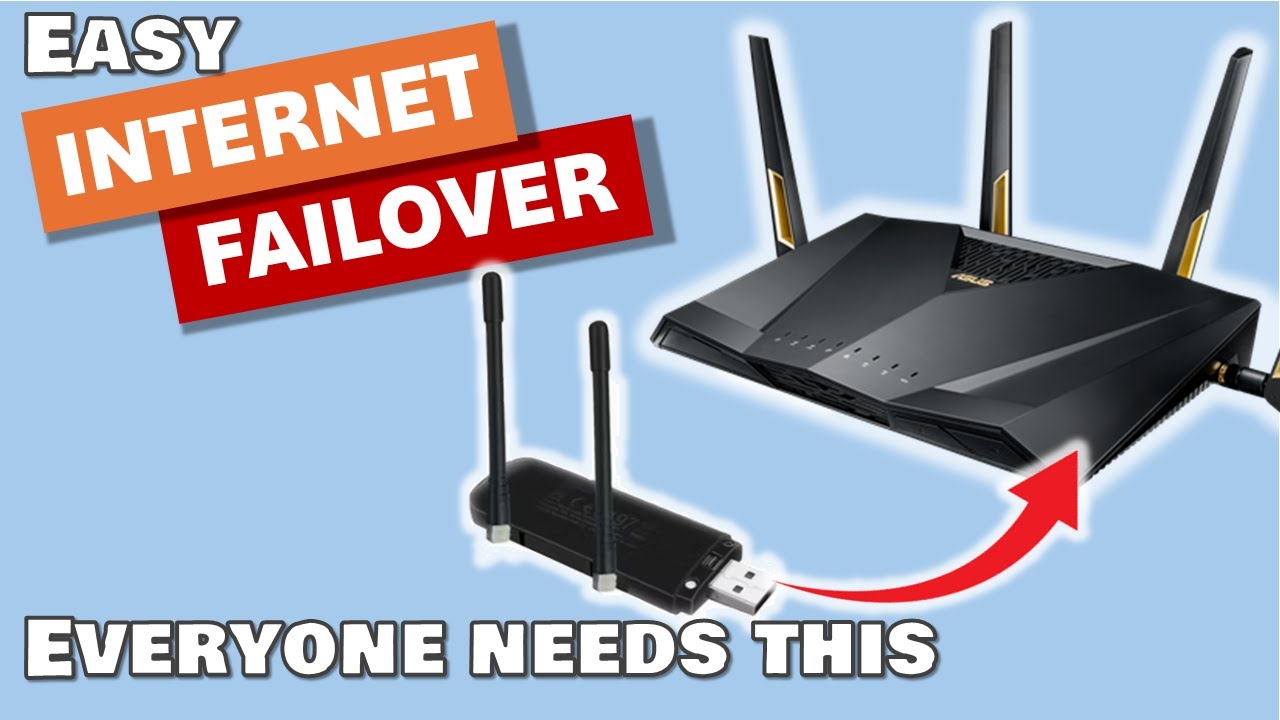
In this guide, I’m showing you how to set up Internet Failover (also known as Internet Backup or Dual WAN). This ensures that if your main broadband goes down, your home network automatically switches to a backup 4G/5G connection.
Watch the Step-by-Step Guide
What is Internet Failover (Dual WAN)?
Internet failover means your router has a “Plan B.” You have a Primary WAN (your main fibre or cable broadband) and a Secondary WAN (a backup connection, usually via a cellular network). If the router detects the primary connection has failed, it seamlessly switches all your devices over to the backup.
To help you push your ASUS Dual WAN guide to the top of the 2026 search results, I have consolidated all the suggested additions into a single “Master Plan.” You can add these sections throughout your post to increase its “Topical Authority.”
Failover versus Load Balancing
| Feature | Failover Mode (Recommended) | Load Balance Mode |
| Primary Goal | Reliability & Uptime | Speed & Bandwidth |
| Data Usage | Low (Saves mobile data) | High (Uses both lines) |
| Best For | Working from home, IoT, Alarms | Large families, Heavy downloading |
| Trade-off | 30s connection gap during switch | Can break Banking/VPN apps |
The Hardware You Need
Setting this up is surprisingly cheap and easy. Here is the kit I’ve been using for several years:
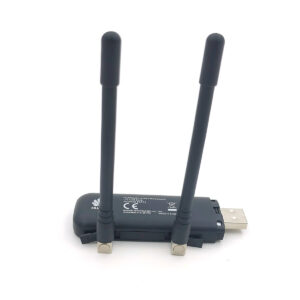
- A Compatible Router: I use the ASUS RT-AX88U, which has built-in Dual WAN support via its USB port.
- USB LTE Dongle: I use a Huawei USB LTE 4G dongle. It’s small, reliable, and plugs directly into the router’s USB port.
- A SIM Card: You’ll need a mobile SIM with a data plan. I use the EE network in the UK.
- Optional Antennas: If your mobile signal is weak, you can clip small antennas onto the dongle to boost reception.
Hardware Comparison: 4G vs. 5G
| Hardware | 4G LTE Dongle | 5G USB Hotspot |
| Avg. Speed | 20–50 Mbps | 150–600+ Mbps |
| Budget | £30 – £60 | £250 – £500+ |
| Power | Bus-powered (Simple) | Battery-powered (Complex) |
| Verdict | Perfect for Smart Home/IoT | Necessary for 4K Video/Zoom |
How to Configure ASUS Dual WAN
Once the dongle is plugged into your router’s USB port, follow these steps in the ASUS web interface:
1. Enable USB Modem Mode
Navigate to USB Application > 3G/4G and enable the USB Modem mode. You will need to enter your provider’s APN settings (a quick Google search for ” [Your Provider] APN settings” will give you these).
2. Set Up Dual WAN
Go to the WAN tab and select Dual WAN at the top.
- Enable Dual WAN: Set this to ON.
- Primary WAN: Select your main Broadband/Ethernet connection.
- Secondary WAN: Select the USB dongle.
- Mode: Choose Failover.
3. Configure “Fail Back” Settings
One of the best features of ASUS routers is the ability to Fail Back. This means the router will constantly check if your main internet is fixed and switch you back automatically so you don’t use up all your mobile data.
- Detection Interval: I set mine to check every 5 seconds.
- Watchdog (Ping): I set the router to ping
google.com. If it misses 12 consecutive pings (about 60 seconds), it triggers the backup.
4. UK APN Quick-Reference Table
| Network | APN | Username / Password |
| EE | everywhere | (blank) |
| O2 | idata.o2.co.uk | vertigo / password |
| Vodafone | internet | web / web |
| Three | three.co.uk | (blank) |
Testing the Failover
In the video, I simulated a total ISP failure by switching off my modem at the wall.
- The Result: Within about 60 seconds, the ASUS router detected the drop, initialized the USB dongle, and the entire house was back online.
- The Failback: Once I turned the modem back on, the router detected the primary signal and moved everyone back to the fibre connection automatically.
Why You Should Set This Up
- Work from Home Security: No more dropped meetings.
- Home Security: If your internet goes down, your smart cameras and alarm notifications still work.
- Peace of Mind: You won’t even notice most short-term ISP outages.
Watchdog Process : The watchdog process is simple : Primary WAN Active >>> Pings Fail (x12) >>> Switch to Secondary >>> Monitor Primary >>> Pings Succeed >>> Failback to Primary.
Pro Tip: When your router fails over to a mobile network, your Public IP address will change. Because mobile ISPs use Carrier-Grade NAT (CGNAT), standard port forwarding will stop working. If you host a Plex server or Home Assistant, consider using a VPN with a Dedicated IP or a Zero Trust Tunnel to maintain remote access.
Internet Failover FAQ
Can I use a mobile 4G/5G SIM for home internet backup?
Yes, using a mobile SIM is the most common and cost-effective way to set up home internet backup. By plugging a compatible 4G or 5G USB dongle into your ASUS router, the router can use the mobile data plan as a secondary WAN if your main fibre line goes down.
How long does it take for ASUS Dual WAN to switch over?
In a typical setup, the switchover takes between 30 to 60 seconds. This depends on your “Detection Interval” settings; the router needs to fail a specific number of pings (usually 10-12) to ensure the outage is real before initializing the backup connection.
What is the difference between Failover and Load Balance mode?
Failover mode keeps the secondary connection on standby and only uses it if the primary line fails (saving mobile data). Load Balance mode uses both connections simultaneously to increase total bandwidth or distribute traffic, which is ideal if you have two unlimited data plans.
Why isn’t my router switching back to the main line (Failback)?
Check your “Watchdog” settings. Ensure the target IP (like 8.8.8.8) is reachable on the primary WAN. If the router can’t verify the primary line is stable, it will stay on the backup to prevent “flapping.”
Can I use my smartphone instead of a dongle?
Yes. ASUS supports USB Tethering. Connect your phone to the router’s USB port, enable tethering in your phone’s settings, and select “USB” as the Secondary WAN in the ASUS UI.
Why can’t I access my home cameras while on backup?
Most mobile networks use CGNAT, which blocks incoming connections. To fix this, use a tool like Tailscale or a Cloudflare Tunnel to access your home lab while the 4G/5G backup is active.
Related Posts for Your Home Network:
- “Before setting up your failover, make sure your primary connection is performing at its best with my guide to the best internet speed tester.”
- “If you’re building a DIY project like my Smart Shed Build, a backup connection is vital for remote monitoring.”
- Protect you data with the 3-2-1 Data Backup Strategy
- Not Just For WiFi: The 7 Hidden Router Features Hiding in Plain Sight
Subscribe Now!
If you found this Internet Failover guide interesting and are ready to stop guessing and start troubleshooting your own tech plus smart DIY, head over to the Built By Pete YouTube channel! We’ve got hundreds of other DIY, Tech projects and smart home tutorials. Click here to subscribe to the BuiltByPete youtube channel and hit the notification bell so you never miss out on the tips, tricks, and step-by-step guides that will simplify your tech life.