Stop Guessing Your Speed: The Best Internet Speed Tester (My Top Pick)
When you’re working on network projects, DIY smart home builds, or just trying to troubleshoot a slow connection, getting an accurate internet speed test is critical. Unfortunately, many popular tools rely on outdated tech like Flash or Java, or they favor your specific Internet Service Provider (ISP), leading to potentially skewed results.
I’ve been on the lookout for a cleaner, more accurate, and universally compatible speed test, and I’ve found a new favorite that works across all browsers and devices: OpenSpeedTest.
If you’re ready to ditch the frustrating speed tests and get a true picture of your network performance, keep reading!
Watch the Video Walkthrough
See exactly how easy it is to use OpenSpeedTest and what results to look for in my quick video walkthrough:
Why OpenSpeedTest is My Top Pick
OpenSpeedTest stands out from the competition for several key reasons that are perfect for technical users and general consumers alike:
1. No Flash, No Java, Just Clean HTML5
Unlike many older testing sites, OpenSpeedTest runs entirely on modern HTML5 technology . This means it loads faster, works perfectly on every modern browser (PC, Mac, mobile), and completely sidesteps the security and compatibility headaches associated with Flash and Java.
2. Truly Unbiased Testing
Many ISP-hosted speed tests are optimized to give you the highest possible result, as they are testing only the speed between your router and their local server. OpenSpeedTest does not rely on your ISP and claims to provide a more accurate, unbiased assessment of your actual connection speed.
3. Comprehensive Network Metrics
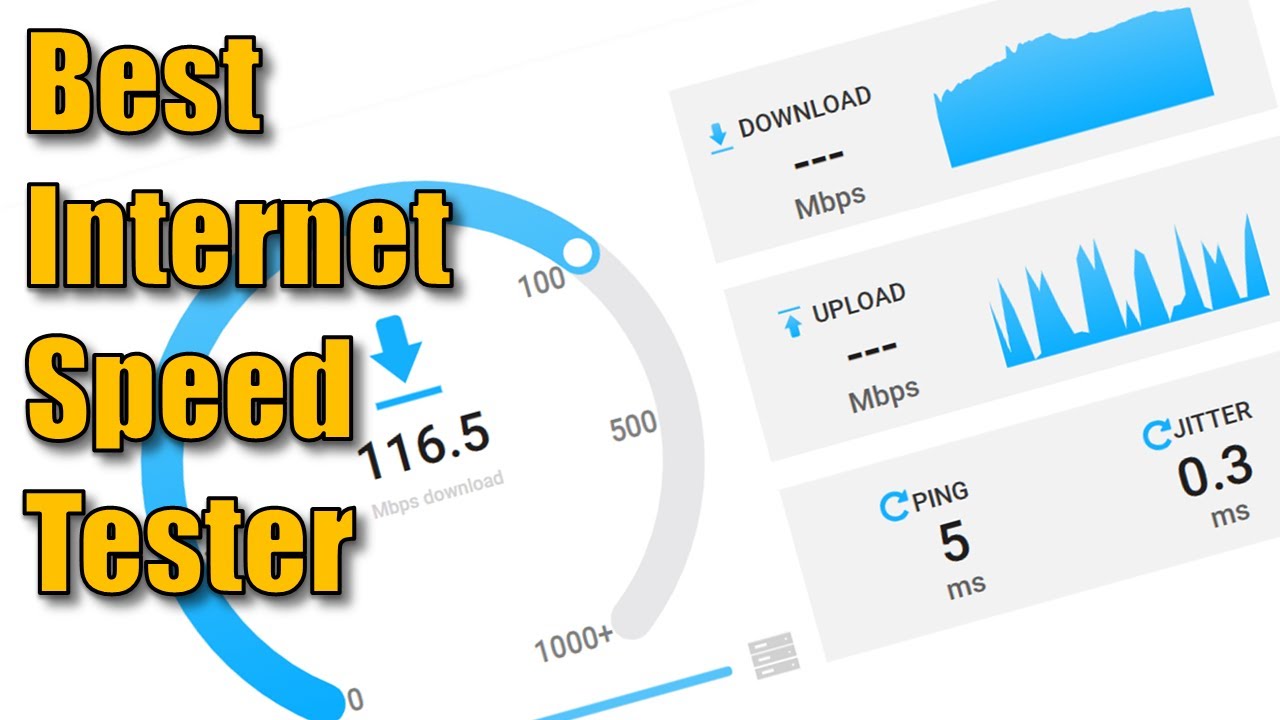
Beyond just download and upload speeds, the platform gives you two other crucial metrics:
- Ping Time: This measures the reaction time of your connection (latency), which is vital for gaming and live video conferencing .
- Jitter: This measures the variation in ping time, which is essential for determining the stability and quality of your connection for VoIP calls or streaming .
4. Wide Speed Range Support
The tester supports a range of speeds, starting from a small amount all the way up to 1 Gigabit per second (1 Gbit/s), making it suitable for modern fiber and high-speed connections.
How to Run Your First Internet Speed Test (In 3 Simple Steps)
The process is incredibly fast and simple, regardless of whether you’re on a PC, tablet, or phone.
- Open Your Browser: Launch any web browser on your device.
- Navigate to the Site: Head over to openspeedtest.com.
- Start the Test: Click the prominent “Play” button to start the test.
The tool will automatically run the download test first, followed by the upload test.
Sharing and Analyzing Your Internet Speed Test Results
Once the test is complete, the clean interface will summarize your results, including download speed, upload speed, ping, and jitter.
A neat feature is the generated URL that you can copy and share. This allows you to easily document your speed or send the results to your ISP or a friend for comparison.
I highly recommend you give OpenSpeedTest a try and see how your speeds compare to other tools you’ve used.
Frequently Asked Questions (FAQ)
Why are my OpenSpeedTest results different from Speedtest.net?
Most commercial speed tests use “multi-thread” testing by default, which can mask network congestion or CPU bottlenecks. OpenSpeedTest uses a pure HTML5 approach that doesn’t rely on third-party plugins or ISP-favored servers. If OpenSpeedTest is slower, it usually means it’s giving you a more realistic look at how your browser and local hardware handle data.
Can I use OpenSpeedTest to test my local network (LAN) speed?
es! This is one of its best “hidden” features. By running the OpenSpeedTest Server on a machine in your home lab, you can test the speed between devices on your own network. This is perfect for checking if your PoE-powered Access Point in the shed is actually delivering full gigabit speeds or if a bad cable is capping you at 100Mbps.
Why is my “Jitter” result high, and should I be worried?
Jitter measures the variation in time between data packets arriving. If your jitter is high (above 30ms), you’ll experience “lag” in gaming, stuttering in video calls, and buffering on high-res streams. It’s often caused by Wi-Fi interference or a congested router.
Does the browser I use affect the test results?
Since OpenSpeedTest is HTML5-based, the browser’s engine does the heavy lifting. If you have 50 tabs open in Chrome, your CPU might struggle to process a 1Gbps test accurately. For the most precise results, close other tabs or try a “private/incognito” window to ensure extensions aren’t interfering.
How do I know if my Ethernet cable is the bottleneck?
If you pay for 1000Mbps (Gigabit) internet but OpenSpeedTest consistently caps out at exactly 90-95Mbps, you likely have a “Fast Ethernet” bottleneck. This usually means you’re using an old Cat5 cable, a 10/100 switch, or a damaged wire that has dropped down to 2-pair signaling.
What is a “good” Ping result?
0–30ms: Excellent (Fiber/High-end Cable)
30–60ms: Good (Standard Cable/DSL)
60–100ms: Acceptable (Standard usage)
100ms+: Noticeable lag in real-time applications.
Can OpenSpeedTest help me find Wi-Fi dead zones?
Absolutely. Run a test standing next to your router, then walk to your shed or backyard and run it again. Compare the Download Speed and Jitter. If the speed drops by 50% or the Jitter spikes, you’ve found a dead zone that might need a dedicated PoE Access Point.
Get More DIY Tech & Networking Tips!
If you’re serious about your home network and DIY tech projects, join the community!
If you enjoyed this quick tip, please consider subscribing to the Built By Pete Youtube channel and hit the notification bell so you don’t miss any of our upcoming videos on networking, smart home, and DIY builds.