10 Pro Tips to Increase Your Internet Speed
In 2026, we are more connected than ever. From 4K streaming and high-speed gaming to a house full of smart gadgets, your home network is under constant pressure. If your internet feels like it’s crawling, don’t blame your ISP just yet. Most speed issues are “local”—meaning you can fix them yourself with a few expert tweaks.
In this guide, I’ll show you how to optimize your network like a pro and increase your internet speed with 10 proven tips that work.
Quick Fixes To Increase Your Internet Speed (Instant Results)
- The 60-Second Power Cycle: Unplug your modem and router. Wait 60 seconds. Plug the modem in first, wait for the “Internet” light to turn solid, then plug in the router. This flushes the “lookup table” (ARP cache) and forces a fresh IP assignment from your ISP.
- The “3-Foot Rule” for Cables: Check the printing on your Ethernet cable. If it says CAT5, you are physically limited to 100Mbps. You need CAT6 or CAT6a to support gigabit speeds. Even a tiny kink in a cable can cause “packet loss,” making your internet feel laggy.
- Browser Maintenance: A bloated browser cache forces your PC to sort through thousands of old files to load one page. Hit Ctrl+Shift+Del in Chrome or Edge and clear “Cached images and files” to instantly speed up your web surfing.
10 Pro Ways to Increase Your Internet Speed
1. Establish a Baseline (The Wired Truth)
To fix a problem, you have to find it. Connect a laptop directly to your router via Ethernet and and use one of the many freely available internet speed test services. I have been using OpenSpeedTest for a while and in my opion is one of the best available. Check out my guide for the OpenSpeedTest service or if you prefer you can watch in my video tutorial here:
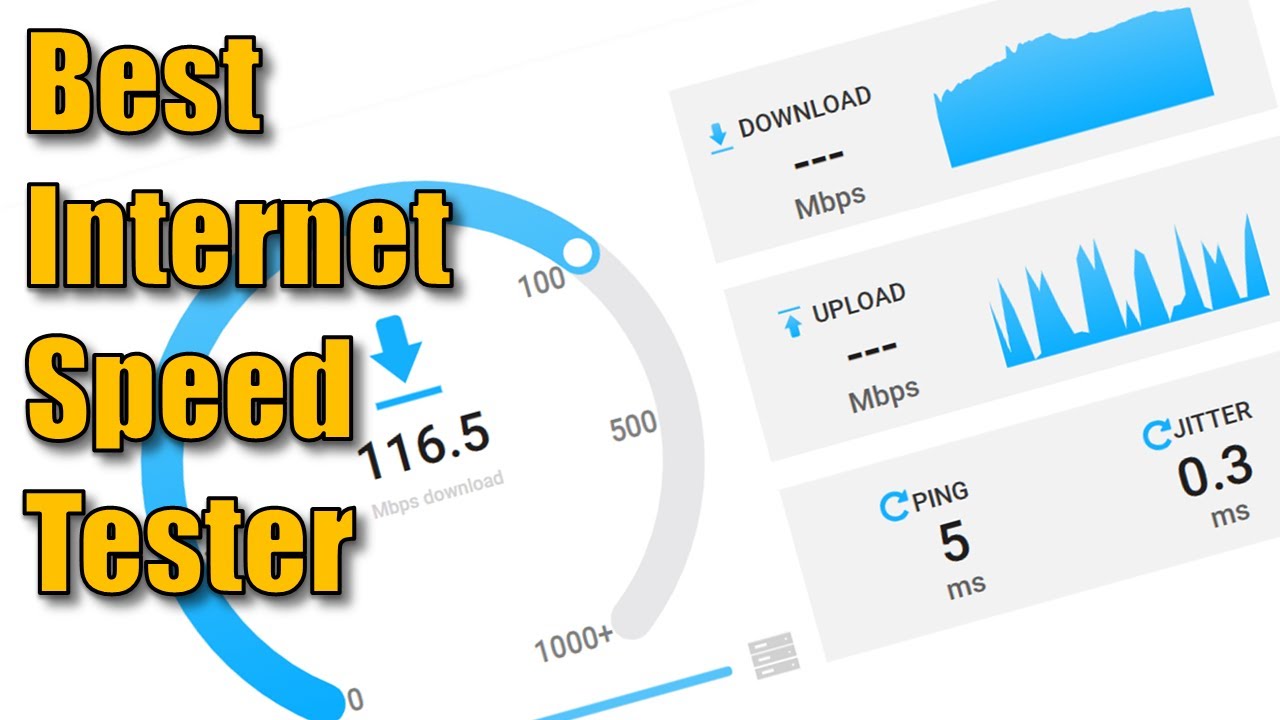
When you run the test, make a note of the results for Download speed (Mbps), Upload speed (Mbps) and Ping/latency (ms). Compare your results with what you are paying for from your ISP. Speed can vary based on time of day, network congestion, WiFi vs wired connection, and server location. Run the tests multiple times throughout the day. If you’re consistently getting much less than advertised it’s worth investigating further.
The Logic: If your wired speed is 500Mbps but your WiFi is 50Mbps, your ISP is doing their job—your router or placement is the problem. If both are slow, call your ISP and ask them to check your “Line SNR” (Signal-to-Noise Ratio).
2. Strategic Router Placement
WiFi signals move perpendicularly (outward and downward) from the antennas.
- Elevation is Key: Placing a router on the floor is like putting a lightbulb in a bucket—half the signal goes into the floorboards. Place it on a high shelf or mount it on a central wall.
- Avoid Obstacles: Keep it away from metal (refrigerators), thick masonry, and water. Fish tanks are silent WiFi killers—water absorbs 2.4GHz signals better than almost anything else.
You can read my guide for best router placement which gives a more detailed deep dive into the science of WiFi signals, revealing the hidden “WiFi killers” in your home, and provides a step-by-step blueprint for optimal router placement. I have seen huge WiFi speed performance increases just by simply moving the main router location!
3. Manually Change Your WiFi Channel
Most routers are set to “Auto,” which often picks a crowded channel.
- For 2.4GHz: Only use Channels 1, 6, or 11. These are the only non-overlapping channels. If you pick Channel 3, you are getting interference from both 1 and 6.
- The Tool: Use a free WiFi Analyzer app on Android or macOS. Look for the “hump” with the least amount of other networks and lock your router to that channel in the
Wireless Settingsmenu.
Changing your WiFi channel is often the single most effective free fix to increase your internet speed. Think of WiFi channels like radio stations – if everyone in your apartment building or your neighbours are using the same channel as you, then you’re all competing for limited bandwidth. You should also Download a WiFi analyser app on your phone or laptop. Run the analyser Look at which channels your neighbors are using. Then log into your router and switch to a less crowded channel for best results.
Take a look at my video for analysing the local WiFi channels
4. Optimize the 5GHz and 6GHz Bands
If your router supports WiFi 6 or 6E, you have access to wider “lanes.”
- Band Steering: If your router supports “Smart Connect,” it combines 2.4GHz and 5GHz into one name. For max speed, I recommend disabling this and creating two names:
Pete_WiFi_Fast(5GHz) andPete_WiFi_IoT(2.4GHz). - Channel Width: In your settings, set your 5GHz band to 80MHz or 160MHz. This is like widening a highway from 2 lanes to 8, allowing much higher data throughput.
5. Switch to Cloudflare or Google DNS
Your ISP’s Default DNS is the “phonebook” that tells your computer where https://www.google.com/search?q=Google.com is. ISPs often use slow, overloaded servers. Here are some of the best options:
Cloudflare: 1.1.1.1 and 1.0.0.1 (fastest, privacy-focused)
Google: 8.8.8.8 and 8.8.4.4 (reliable, works everywhere)
Quad9: 9.9.9.9 (blocks malicious sites)
- How to Change: Log into your router (usually
192.168.1.1), find the WAN or Internet tab, and manually enter:- Primary:
1.1.1.1(Cloudflare) - Secondary:
8.8.8.8(Google) - Save and reboot. This changes DNS for all devices on your network at once.
- Primary:
- The Result: Websites will “resolve” faster, making your browsing experience feel much more responsive.
6. Kill “Phantom” Bandwidth Hogs
In a smart home, dozens of devices fight for “airtime.”
- The Network Audit: Disconnect old tablets, guest phones, or smart bulbs you no longer use. Even idle devices use “pings” to stay connected, which slows down the “handshake” process for your main PC.
- The Fix: Use a Guest Network for your smart home gadgets. This keeps your main 5GHz band clear for high-priority tasks like gaming and 4K streaming.
Check What’s Using Your Bandwidth Right Now
- On Windows: Press Ctrl+Shift+Esc to open Task Manager, go to the Performance tab, and click on your network adapter. You’ll see which apps are using bandwidth. Kill the ones you don’t need.
- On Mac: Open Activity Monitor (in Applications → Utilities), click the Network tab. Sort by “Sent Bytes” or “Received Bytes” to see the culprits.
7. Firmware and Driver Updates
Manufacturers release “patches” that fix bugs in how the router handles traffic.
- Router: Check the
Administration > Firmwaretab in your router settings. - PC: Go to Device Manager > Network Adapters, right-click your WiFi card, and select “Update Driver.” Often, a slow PC is just a PC with an old network driver that doesn’t understand modern WiFi 6 protocols.
8. Fix “Bufferbloat” with SQM
If your speed tests look great but your gaming ping spikes to 500ms when someone starts a download, you have Bufferbloat.
- The Test: Use the Waveform Bufferbloat Test. If you get a C or D, your router is “choking” on too much data.
- The Fix: Look for SQM (Smart Queue Management) or “conferencing and gaming optimization” in your router settings. This acts as a “traffic cop” to ensure small, high-priority packets (gaming/calls) aren’t stuck behind a huge Netflix download.
9. Enable Quality of Service (QoS)
QoS is your “fast lane.”
- The Set-up: In your router’s QoS menu, you can usually drag-and-drop your most important devices (Work Laptop, Xbox, Apple TV) to the “Highest Priority” bucket. The router will now sacrifice the speed of background updates to ensure your Zoom call stays crystal clear.
10. Switch to a Mesh System
If you have “dead zones,” stop buying cheap plug-in extenders.
- Why Extenders Fail: They are “half-duplex,” meaning they spend half their time talking to the router and half talking to you—immediately cutting your speed by 50%.
- The Mesh Advantage: Mesh systems (like Eero or Asus AiMesh) use a dedicated wireless backhaul. It’s like having a physical cable connecting the nodes, giving you full speed in every corner of the house. Check out how to setup an ASUS AiMesh node for better whole home coverage.
Built By Pete Pro Tip: Always run a speed test after making a single change. If you change five things at once, you won’t know which one actually fixed the lag!
Common Mistakes That Slow You Down
- The “Tech Grave”: Placing your router inside a wooden or metal cabinet. WiFi needs to “breathe” out in the open.
- Microwave Interference: Microwaves operate on 2.4GHz. If your internet drops when you make popcorn, your router is too close to the kitchen.
- Overheating: Routers are tiny computers. If they get too hot, they “thermal throttle” their processors. Make sure yours isn’t covered in dust or stacked on top of a hot DVR.
Keep Your Network Secure
Making sure you have no viruses lurking on your network machines is also key to keeping things running smoothly. If you are paying $50 or more every year for Norton, McAfee, or Avast, you might be overspending. Most Windows 10 and Windows 11 users don’t realize that Microsoft has hidden a professional-grade Free Windows Virus Remover directly inside your operating system. It’s called the Microsoft Malicious Software Removal Tool (MRT), and in this guide, I’ll show you how to trigger this secret “surgical” scanner to clean your PC in minutes.
When to Upgrade Your ISP Internet Plan
Sometimes local troubleshooting only goes so far. If you’ve optimized your setup and still face lag, it may be time to contact your ISP or upgrade your plan. Consider reaching out if:
- Wired speeds consistently fall short of your plan’s promise during off-peak hours.
- Household demand has increased due to more people working from home or streaming.
- Video calls and 4K/8K streams continue to buffer on a stable, wired connection.
External factors like network congestion or degraded street lines require professional repair. If your local gear isn’t the problem, don’t hesitate to make the call.
At the time of writing this article some of the use cases and speeds available are:
| User Profile | Recommended Speed | Best For… |
| Light/Solo | 100 Mbps | Email, browsing, and light streaming. |
| Typical Family | 300–500 Mbps | Multiple HD streams and Zoom calls. |
| Power Household | 1 Gbps | 4K video, gaming, and remote work. |
| Pro / Creator | 2+ Gbps | Large uploads and fiber-level performance. |
If fiber-optic service is available at your address, it is the superior choice. Unlike traditional cable, fiber provides symmetrical speeds—meaning your upload is just as fast as your download. It also offers significantly lower latency and higher reliability, making it the gold standard for gaming, video calls, and large backups.
Frequently Asked Questions
Q: Is 5GHz always better than 2.4GHz?
A: For speed, yes. For range, no. 5GHz has trouble penetrating thick walls. If you are two rooms away, 2.4GHz might actually be more stable.
Q: Will a VPN make my internet faster?
A: Rarely. A VPN adds encryption and extra distance (routing) to your data. The only time it helps is if your ISP is “throttling” specific traffic, like Netflix or YouTube.
Q: Why does my internet slow down at night?
A: This is “Node Congestion.” If you are on cable internet (Docsis), you share a “neighborhood pipe” with your neighbors. When everyone gets home and streams 4K, that pipe gets full.
Q: How do I know if I need a new router?
A: If your current router is more than 3 years old, it likely lacks WiFi 6 and WPA3 security. If you have more than 10 devices in your home, an upgrade to a modern WiFi 6/6E router will make a massive difference in stability.
Subscribe Now!
If you found this Increase Your Internet Speed guide interesting and are ready to stop guessing and start troubleshooting your own tech plus smart DIY, head over to the Built By Pete YouTube channel! We’ve got hundreds of other DIY projects and smart home tutorials. Click here to subscribe to the BuiltByPete youtube channel and hit the notification bell so you never miss out on the tips, tricks, and step-by-step guides that will simplify your tech life.