How to Run a Continuous Ping Command (The Easiest Way to Diagnose Network Issues)
Continuous Ping Command. If you’ve ever had a network cable disconnect, a device drop off the Wi-Fi, or suffered from intermittent internet lag, you need a quick and simple way to diagnose the problem. The built-in Ping command is the oldest and best tool for the job.
But running the standard ping four times isn’t enough when you’re troubleshooting physical issues like wiggling a cable or testing a new run. That’s why you need the Continuous Ping Command.
This guide will show you, in two simple steps, how to run a ping test that never stops, allowing you to instantly pinpoint exactly when and why your connection is failing.
Watch how to use the continuous ping command on the BuiltByPete Youtube channel How to Run a Continuous Ping Command or continue to read on.
1. What is the Standard Ping Command?
Before we run a continuous test, let’s quickly review the basic Ping command.
Ping is a network utility that sends a small packet of data over a network to a specific device (like a router, computer, or server) and measures how long it takes to receive a response (Round Trip Time). If a device is alive and well on the network, it will respond.
How to Run a Basic Ping Test
- Open Command Prompt (CMD): Left-click the Start icon and type
CMD. Run the Command Prompt application (we recommend running it as Administrator). - Run the Ping: Type
pingfollowed by the IP address of the device you want to check.
Example: To check your router, type:
ping 192.168.1.1
You will see four packets sent and four received if the connection is successful.
2. The Power of the Continuous Ping Command (ping -t)
The standard test is useful, but for diagnostics, you need a constant stream of information. The continuous ping command allows you to run a constant test while you physically troubleshoot your network.

How to Run a Continuous Ping Test
- Open Command Prompt (CMD): Follow the steps above to open Command Prompt.
- Add the
-tflag: Type the basicpingcommand, but add a dash and the lettert(-t). This flag tells the computer to run the ping test continuously.
Example: To continuously check your router, type:
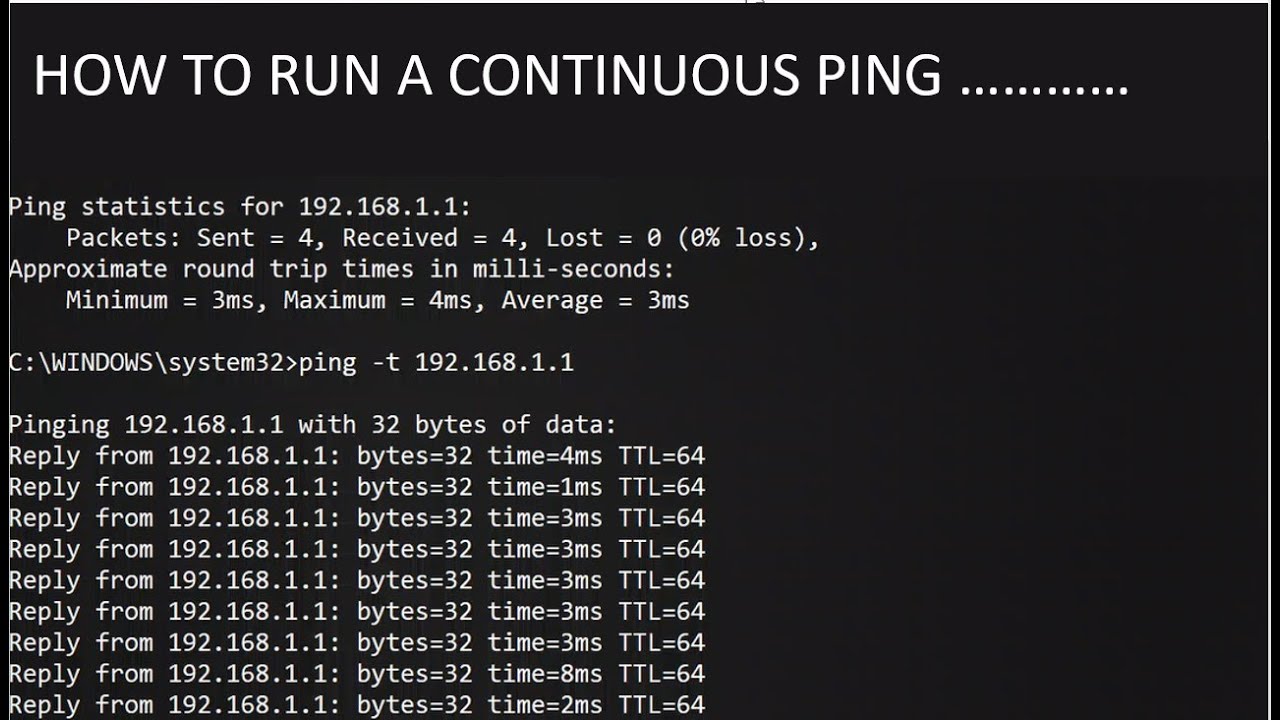
ping -t 192.168.1.1
Once you press Enter, the screen will continuously update with results, repeating the ping every second.
How to Use the Continuous Ping for Diagnostics
With the command running, you can now perform physical troubleshooting and see the results instantly:
- Test Cables: Plug in new cables or wiggle existing connections. If the continuous ping shows “Request timed out”, you know that cable or connection point is the failure point.
- Test Devices: Turn a new network device (like a TV or NAS) on. When the pings start receiving a response, you know the device has successfully joined the network.
- Check Intermittency: Leave the window running for an hour or two. If you see occasional “Timed out” results mixed with successful replies, you know you have an intermittent drop, likely caused by a failing device or router.
3. Stopping the Test
The continuous ping command will run indefinitely until you stop it.
- To stop the continuous ping test, simply press Control + C (Ctrl + C) on your keyboard.
The command prompt will summarise the session, showing you how many packets were sent, received, and lost, giving you a full picture of your network’s reliability during the test period.
Watch how to use the continuous ping command on the BuiltByPete Youtube channel How to Run a Continuous Ping Command
Continuous Ping Command FAQ
Q. What does “Request timed out” actually mean?
A. It means your computer sent a data packet to the target device but didn’t receive a reply within the expected timeframe. This usually indicates one of three things: the cable is damaged, the device is powered off/disconnected from the network, or a firewall on the target device is actively blocking “ping” requests (ICMP).
Q. Why do I see “Destination host unreachable”?
A. This is different from a timeout. It usually means your computer knows the destination IP address exists, but it has no path to get there. Check your router configuration or ensure the device you are pinging is actually on the same network/subnet as your computer.
Q. Will running a continuous ping slow down my network?
A. No. The ping command sends tiny, lightweight packets. It creates negligible traffic—far less than streaming a song or loading a webpage. You can safely leave it running as long as you need to capture intermittent drops.
Q. My pings are high (e.g., 200ms+). Is that bad?
A. It depends on the device. If you are pinging your router (which should be <1ms), high latency suggests a congested network, poor Wi-Fi signal, or a failing cable. If you are pinging a website across the world, 200ms might be normal. Always start by pinging your local router to establish a baseline for your home network’s health.
Q. Can I save these results to a text file?
A. Yes! If you are troubleshooting a long-term issue, you can export the results to a file for later review. Use this command: ping -t 192.168.1.1 > C:\pinglog.txt (Note: To stop this, you still press Ctrl + C).
Need More Network Tips?
If you found this quick diagnostic useful, make sure to subscribe to the Built By Pete YouTube channel for more quick tutorials on networking, smart home tech, and DIY solutions!
Other Articles You Might Like
- Shelly EM: Smart Energy Monitoring Guide
- Simple DIY Network Monitor Using a Windows Batch Script V2 (Beginner Friendly)
- Schedule Router Reboot: Why Your Wi-Fi Needs It (And How to Do It Easily on ASUS)
Subscribe Now!
If you found this Continuous Ping Command guide interesting and are ready to stop guessing and start troubleshooting your own tech plus smart DIY, head over to the Built By Pete YouTube channel! We’ve got hundreds of other DIY projects and smart home tutorials. Click here to subscribe to the BuiltByPete youtube channel and hit the notification bell so you never miss out on the tips, tricks, and step-by-step guides that will simplify your tech life.