Local Network Speed Test (The Easy & Free Way)
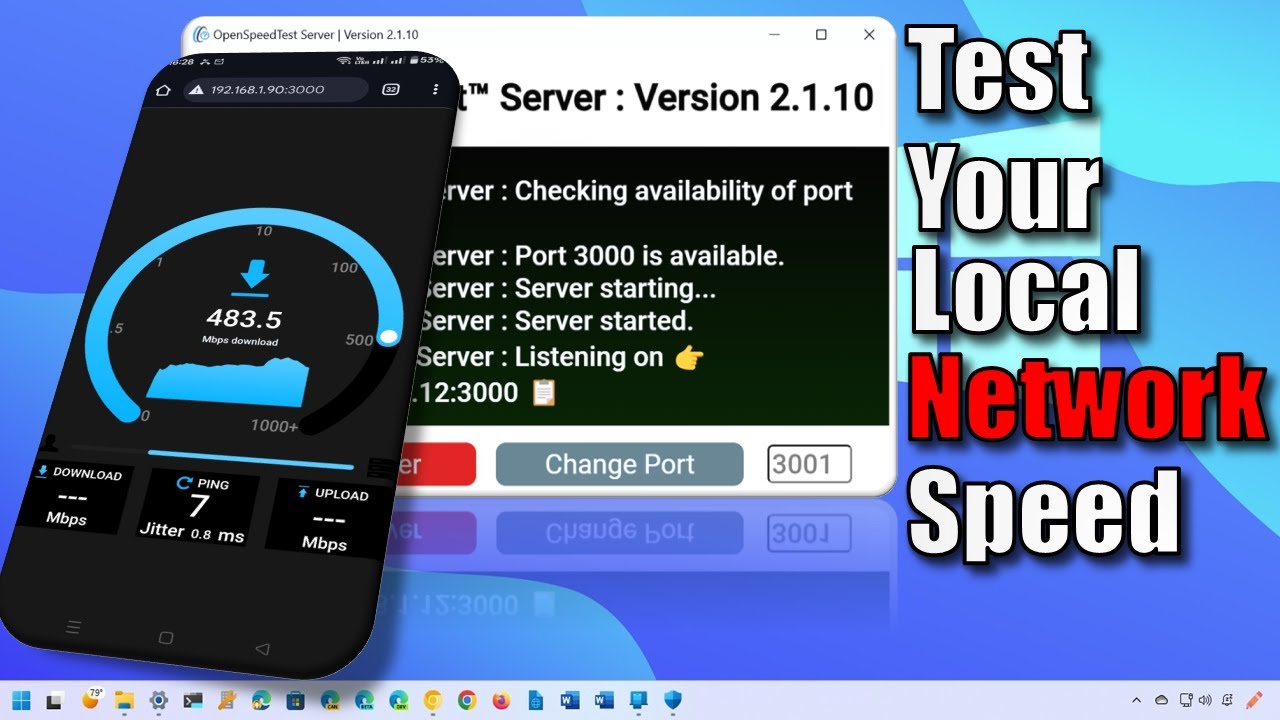
A Local Network Speed Test reveals what happens behind the router; while most people head straight to Fast.com or Speedtest.net to check their ISP’s performance, those tools don’t tell the full story of the connectivity inside your home.
If you are streaming 4K video from a local media server, transferring large files between computers, or setting up a Smart Shed full of WiFi-connected tech, your Local Area Network (LAN) speed is actually more important than your internet speed.
In this guide, I’ll show you how to run a private speed test server on your own network for free.
Watch the Full Local Network Speed Test Tutorial:
See the step-by-step setup and watch me test multiple devices in the full video.
Why Internet Speed Tests Aren’t Enough
An internet speed test measures the “pipe” from your house to the outside world. A Local Network Speed Test measures the “pipes” between your devices.
You should test your local network if:
- Your WiFi feels sluggish even though your fiber is fast.
- You want to see the real-world difference between an Ethernet cable and WiFi.
- You are troubleshooting “dead zones” in your home or garden.
- You want to test if an old laptop’s hardware is bottlenecking your connection.
The Tool: OpenSpeedTest
To do this, we use a brilliant, free, and portable tool called OpenSpeedTest. It’s lightweight, requires no complex installation, and works on Windows, Mac, and Linux.
Step 1: Set Up the Server
I recommend choosing your most powerful, Ethernet-connected machine to act as the server.
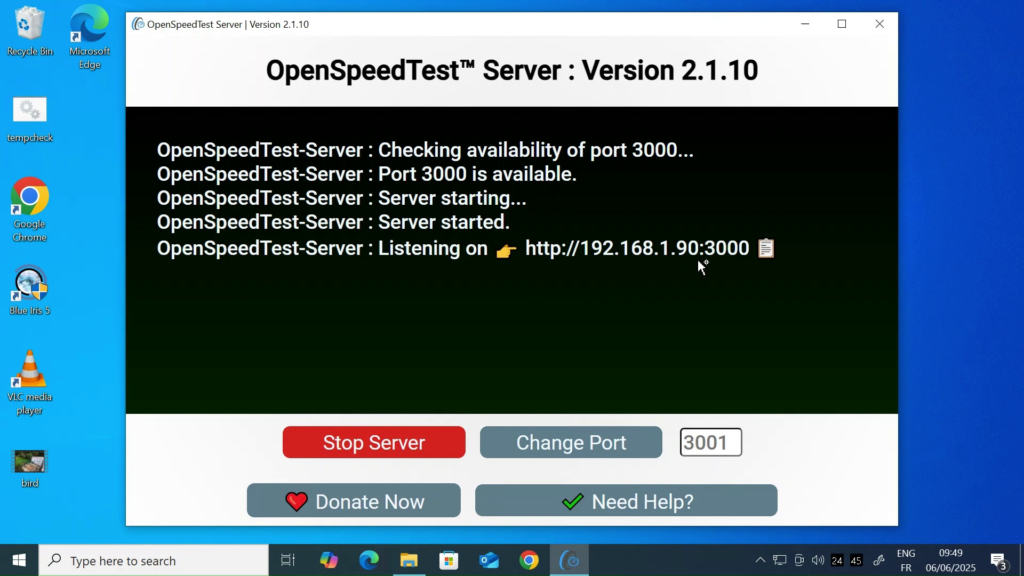
- Head to OpenSpeedTest.com and download the “Server” application.
- It’s a portable app, so you don’t need to install it. Just double-click to run.
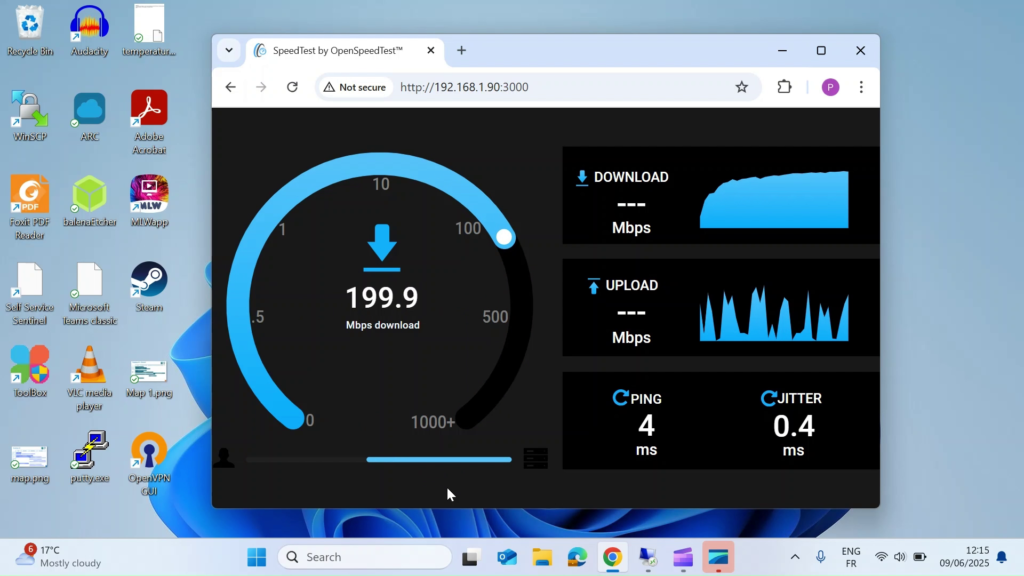
- Once launched, you will see an IP Address and Port Number (usually something like
192.168.1.90:3000). Keep this window open!
Step 2: Test from Other Devices
Now, grab any other device on your network (laptop, phone, or tablet).
- Open a web browser.
- Type that IP address and port number into the address bar and hit enter.
- Click Start.
Step 3: Analyze Your Results
When the local network speed test runs, it stays entirely within your home. It doesn’t use a single kilobyte of your monthly data allowance.
- Ethernet to Ethernet: You should see near-gigabit speeds (approx. 900+ Mbps).
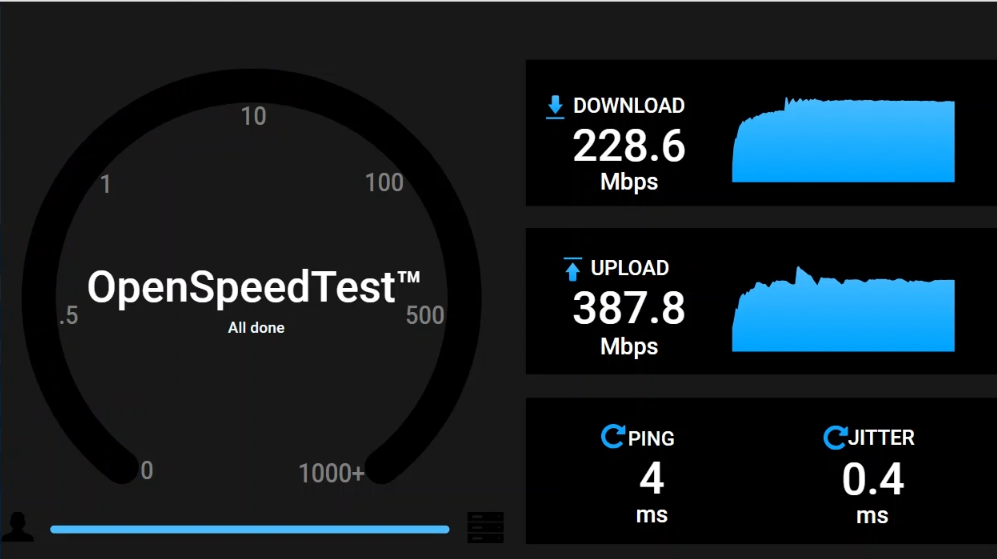
- WiFi to Ethernet: This will vary based on your router and device. On an older laptop, you might see 200 Mbps, while a modern smartphone might hit 500+ Mbps.
Troubleshooting “Slow” Results
If your local network speed test shows low speeds, but your internet test is fast, the problem is your hardware, not your ISP:
- Outdated Hardware: As shown in the video, an old laptop’s WiFi card can be a major bottleneck.
- Interference: Walls, mirrors, and even microwaves can drop your WiFi speeds.
- Cables: Ensure you are using at least Cat5e or Cat6 cables. Old Cat5 cables are limited to 100 Mbps.
If you type your IP address into your second device and the page won’t load, your computer’s “security guard” is likely blocking the local network speed test.
| Checkpoint | Action | Technical Reason |
| The Port | Ensure you added :3000 | OpenSpeedTest defaults to Port 3000. Without it, the browser looks at Port 80 (standard web). |
| Windows Firewall | “Allow” OpenSpeedTest | Windows often blocks incoming connections from “Public” or “Private” networks by default. |
| Network Profile | Set Network to “Private” | If Windows thinks your home WiFi is “Public,” it will block the speed test for security. |
| The IP | Double-check the Server IP | Ensure the server machine hasn’t changed its IP address via DHCP since you last looked. |
Local Network Speed Test Reference Guide
| Connection Type | Real-World Expected Speed | Potential “Bottlenecks” |
| Gigabit Ethernet (Cat5e/6) | 900 – 940 Mbps | Aging network switches or “Fast Ethernet” (100Mbps) ports. |
| WiFi 6 (802.11ax) | 600 – 900+ Mbps | Distance from router; 2.4GHz vs 5GHz band selection. |
| WiFi 5 (802.11ac) | 200 – 500 Mbps | Older laptop WiFi cards (as seen at). |
| WiFi 4 (802.11n) | 50 – 150 Mbps | Limited by old hardware; prone to interference. |
| Powerline Adapters | 50 – 200 Mbps | Quality of home electrical wiring; distance between plugs. |
The Ethernet Cable Guide: Know Your Wiring
If your local network speed test is capped at exactly 100 Mbps, your cable is likely the culprit. Use this table to identify if your wiring is holding back your hardware.
| Cable Category | Max Data Rate | Max Bandwidth | Best Use Case |
| Cat 5 | 100 Mbps | 100 MHz | Obsolete. Replace immediately for modern networking. |
| Cat 5e | 1,000 Mbps (1Gbps) | 100 MHz | Standard home networking; fine for most “Smart Shed” tech. |
| Cat 6 | 1,000 Mbps (1Gbps) | 250 MHz | Improved insulation; better for long runs near power cables. |
| Cat 6a | 10,000 Mbps (10Gbps) | 500 MHz | Future-Proof. Recommended for 4K video editing and servers. |
WiFi Interference: The “Hidden” Speed Killers
If your Ethernet test is 900 Mbps but your WiFi test (even on a new phone) is poor, one of these common household items might be the “Signal Thief.”
| Interference Source | Typical Impact | Why? |
| Microwaves | High (during use) | Operates on the same 2.4GHz frequency as older WiFi. |
| Mirrors & Glass | Medium | The metallic backing in mirrors reflects and scatters WiFi signals. |
| Baby Monitors | Medium / High | Constantly “broadcasts” on the 2.4GHz band, causing congestion. |
| Brick / Concrete Walls | High | Dense materials absorb high-frequency signals (especially 5GHz). |
| Fairy Lights | Low / Medium | Unshielded wires can create a small electromagnetic field. |
Local Network Speed Test (FAQ)
Q: Does this speed test use my internet data?
A: No. Because the OpenSpeedTest server is hosted locally on your machine, all data stays within your house. You can run this test even if your internet connection is completely down.
Q: Why is my WiFi speed so much lower than my Ethernet speed?
A: WiFi is a “half-duplex” medium subject to interference from walls, furniture, and other wireless signals. Ethernet is “full-duplex” and dedicated, meaning it has no competition for the bandwidth.
Q: Can I test my Smart TV or Games Console?
A: Yes! As long as the device has a web browser, just type in your server’s IP address. This is the best way to see if your 4K Netflix buffering is caused by the TV’s location.
Q: Do I need to leave the server app running?
A: Only while you are testing. Once you’re done, you can close the app. Since it’s a portable app, it won’t take up resources in the background.
Further Reading
- Wi-Fi Standards Explained: Everything You Need to Know About Wi-Fi 6, 6E, and the Future of Wi-Fi 7
- Ethernet Cable Standards Explained: Cat5e vs. Cat6 vs. Cat8 (The Definitive Home Network Guide)
- Stop Guessing Your Speed: The Best Internet Speed Tester (My Top Pick)
- DIY Network Status Monitor: Build a Colour-Coded PING Tool in 5 Minutes
- Find What You Need Faster: Introducing the Built By Pete Article Index & Search
- The Built By Pete Resource Hub: All Our DIY & Tech YouTube Playlists in One Place
Subscribe Now!
If you found this Local Network Speed Test guide interesting and are ready to stop guessing and start troubleshooting your own tech plus smart DIY, head over to the Built By Pete YouTube channel! We’ve got hundreds of other DIY projects and smart home tutorials. Click here to subscribe to the BuiltByPete youtube channel and hit the notification bell so you never miss out on the tips, tricks, and step-by-step guides that will simplify your tech life.