Windows 11 No Internet Flowchart: The 60-Second Fix
Following a Windows 11 no internet flowchart is often the best first step when you encounter the dreaded “Globe icon” in your taskbar. Few things are more frustrating than seeing “Connected, no internet” or having a browser that simply won’t load; however, most network issues on Windows 11 follow a predictable pattern.
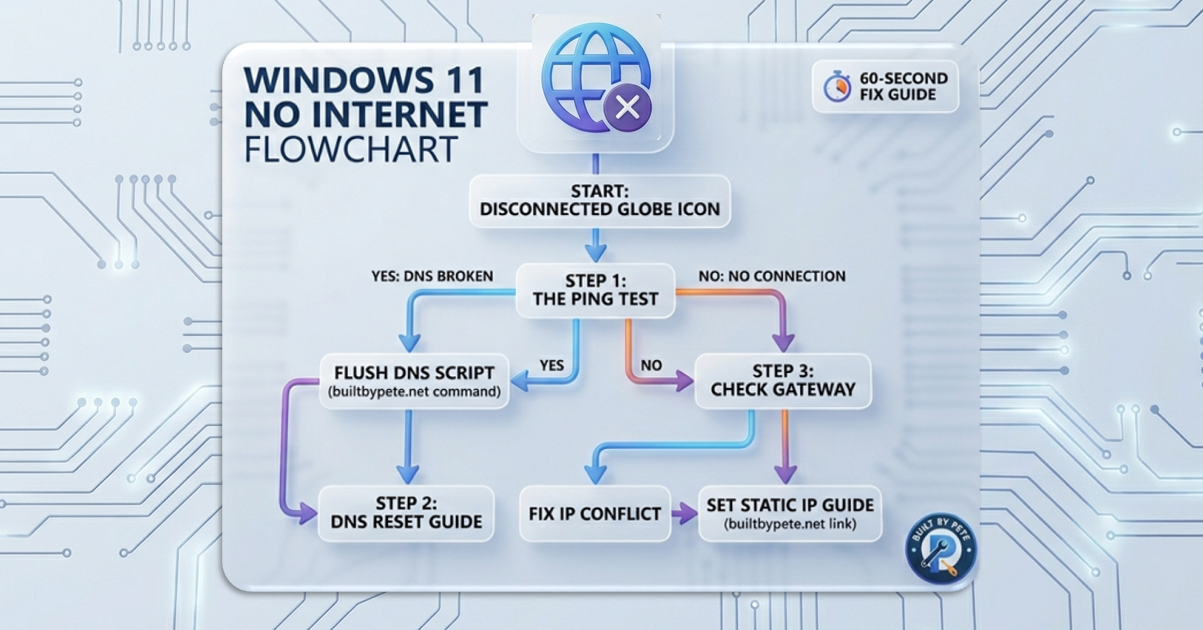
As part of the Built By Pete networking series, I’ve put together this rapid-fire troubleshooting Windows 11 no internet flowchart to help you identify the culprit—whether it’s your PC, your DNS, or your router—without wasting hours on hold with your ISP.
The Troubleshooting Flowchart
Follow these steps in order. If a step fixes it, you’re done!
- The “Ping” Reality Check: Open Command Prompt (
cmd) and typeping 8.8.8.8.- Does it reply? Your internet is working, but your DNS is broken. Jump to Step 2.
- Request timed out? Your PC isn’t reaching the outside world. Jump to Step 3.
- Need help with the command? See my guide on how to find website IP addresses and use ping.
- The DNS Flush: If you can ping numbers (8.8.8.8) but not names (google.com), your DNS cache is likely corrupt.
- The Fix: Run
ipconfig /flushdnsin the Command Prompt. - For a deeper dive, check out my Windows DNS Reset Guide.
- The Fix: Run
- The Gateway Test: Type
ipconfigand find your Default Gateway. Try to ping that IP address.- Can’t hit the Gateway? Your PC isn’t talking to your router. Check your Wi-Fi password or Ethernet cable.
- Constant dropouts? You may have an IP conflict. I recommend setting a Static IP for your main machine to keep the connection stable. See my ASUS Router Static IP Setup guide for the exact steps.
- The “Globe Icon” Bug: Sometimes Windows shows “No Internet” even when everything is working. This is often a service hang.
- The Fix: Restart the
Network Store Interface Serviceinservices.mscor simply toggle Airplane Mode on and off.
- The Fix: Restart the
Why is my internet slow after fixing the connection?
If you’ve restored your connection but things still feel sluggish, it might not be the network at all. Often, background processes or slow system memory can bottleneck your browser.
- Check your hardware: Follow my guide to check your RAM speed in Windows 11 to ensure your system isn’t throttled.
- Clear the clutter: Ensure you don’t have multiple network “optimizers” running in the background, which can often cause the very “No Internet” errors you just fixed.
Summary Checklist
| Symptom | Probable Cause | Quick Fix |
| Ping works, Browsing fails | DNS Failure | ipconfig /flushdns |
| No Ping to 8.8.8.8 | Gateway/Router | Check Static IP Settings |
| Yellow Triangle/Globe | Windows Service Bug | Toggle Airplane Mode |
Frequently Asked Questions (FAQ)
Why does my Windows 11 taskbar show a “Globe” icon even when I have internet?
This is a known Windows service bug where the Network List Service fails to update the status. Usually, your internet is working perfectly fine. You can often fix this by toggling Airplane Mode on and off, or by restarting your router to force a new handshake with the OS.
What should I do if my ping works but websites won’t load?
If you can successfully ping 8.8.8.8 but cannot open websites, you have a DNS (Domain Name System) issue. Your computer knows how to reach the internet via IP addresses but can’t translate names into numbers. Try flushing your DNS or switching to a public DNS provider like Cloudflare (1.1.1.1).
How do I fix a “Default Gateway Not Available” error?
This error usually means your router and PC are having an “argument” over your IP address. This is common on crowded Wi-Fi networks. The most permanent fix is to assign a Static IP address
to your device so it doesn’t have to request a new one every time it reconnects.
Can slow RAM cause internet connection errors?
While RAM doesn’t directly control your Wi-Fi, a sluggish system can cause the network stack to time out. If your PC is freezing while trying to connect, check your RAM speed to ensure your hardware isn’t bottlenecking your browser’s ability to process data.
Does a DNS flush delete my files?
No. A DNS flush only clears the temporary “address book” your computer keeps of the websites you’ve visited recently. It is 100% safe and is often the first step in professional network troubleshooting.
Further Reading
- Ethernet Cable Standards Explained: Cat5e vs. Cat6 vs. Cat8 (The Definitive Home Network Guide)
- Stop Guessing Your Speed: The Best Internet Speed Tester (My Top Pick)
- DIY Network Status Monitor: Build a Colour-Coded PING Tool in 5 Minutes
Subscribe Now!
If you found this Windows 11 no Internet flowchart helpful and are ready to stop guessing and start troubleshooting your own tech and smart DIY, head over to the Built By Pete YouTube channel! We’ve got hundreds of other DIY projects and smart home tutorials. Click here to subscribe and hit the notification bell so you never miss out on the tips, tricks, and step-by-step guides that will simplify your tech life.