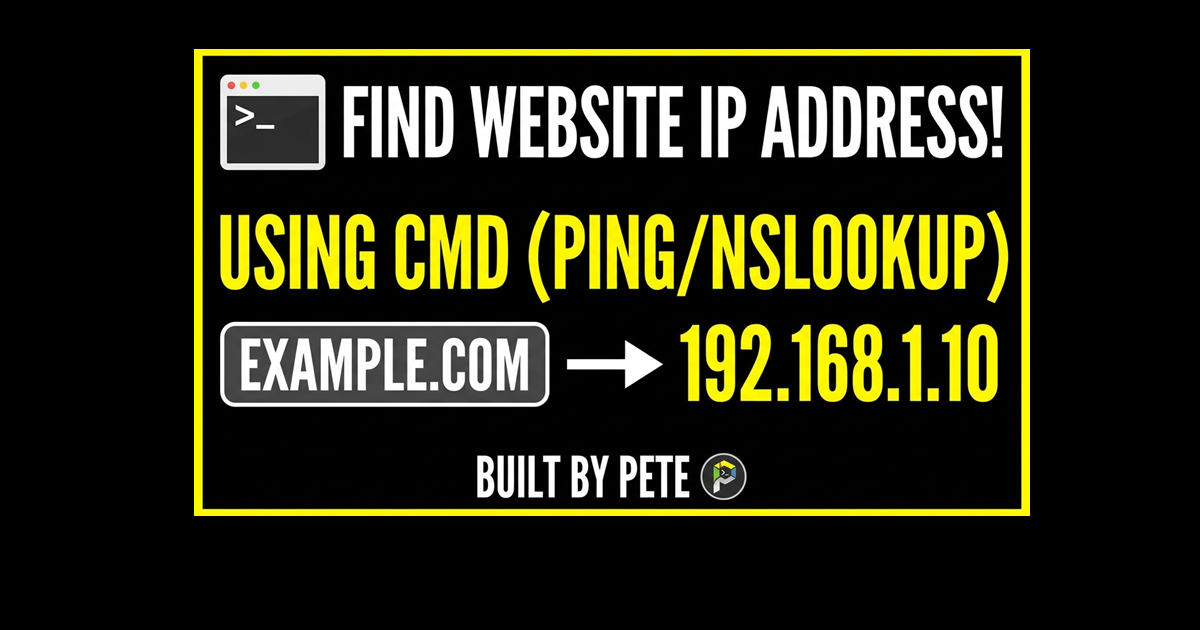
How to Find Website IP Address Using Command Prompt (Windows)
Have you ever needed to find website IP address details behind a URL like google.com or amazon.com? Whether you are troubleshooting network connectivity, setting up a firewall, or just curious about how the web works, you don’t need fancy software to get this information.
In this quick guide, I’ll show you how to use a built-in Windows tool—the Command Prompt—to find the IP address of literally any website in seconds.
What is a Website IP Address?
Think of a URL (like www.builtbypete.com) as a human-friendly nickname and an IP address as the actual phone number the internet uses to find that site’s server. While we prefer names, computers prefer numbers.
Watch The Full Guide
Step-by-Step: To Find Website IP Address with CMD
1. Open the Command Prompt (CMD)
- Go to your Windows Search Bar (bottom left of your screen).
- Type in
cmd. - Pro Tip : Right-click on the Command Prompt icon and select “Run as Administrator.” This gives you elevated privileges, which is always a good habit for networking tasks.
2. Use the “Ping” Command
Once the black window opens, you are going to use the ping command. This sends a small packet of data to the website and asks for a response.
- Type the following:
ping www.google.com(or any site you choose). - Press Enter.
3. Read the Results
Windows will immediately start “pinging” the site. In the first few lines of the output, you will see the website’s URL followed by a set of numbers in brackets.
- Example:
Pinging google.com [142.250.200.4] with 32 bytes of data: - The numbers inside those brackets (e.g.,
142.250.200.4) are the IP Address for that website.
Testing Other Websites
In the video, we tested a few major players to see how easy it is to find website IP address details. Here’s how it looks:
- Amazon : Typing
ping www.amazon.comreturned their specific server IP. - BBC : Typing
ping www.bbc.co.ukrevealed the IP address for the UK’s largest broadcaster.
Why Use the “Ping” Method?
- No Software Required: It’s built into every version of Windows.
- Fast: It takes less than 5 seconds.
- Diagnostic Check: Not only do you get the IP, but you also see if the website is “up.” If the ping fails, there may be a connection issue between you and that server.
Bonus: The “Pro” Way Using nslookup
If you want more detailed information than a simple ping, you can use the Name Server Lookup command. This is the tool IT professionals use to troubleshoot DNS issues.
Why use nslookup instead of ping?
- Invisible Sites: Some websites block “ping” requests for security reasons (you’ll see “Request timed out”).
nslookupwill still find the IP because it asks the phonebook (DNS), not the website itself. - Multiple IPs: Large sites like Google often have multiple IP addresses.
nslookupwill list them all for you.
How to use it:
- In your Command Prompt, type:
nslookup google.com - Hit Enter.
- The Results:
- Server/Address: This is your own router or DNS provider (like Cloudflare or Google).
- Non-authoritative answer: This is the section you want! It will list the Name and one or more Addresses. These are the IP addresses assigned to that website.
Using Online DNS Lookup Tools
If you prefer a visual interface, there are several free websites that can perform this Find Website IP Address “lookup” for you:
- Nslookup.io: A simple tool where you enter a domain and it shows you all associated IP addresses (IPv4 and IPv6).
- Google Admin Toolbox (Dig): A more advanced tool used by IT professionals to see the raw DNS data.
Find Website IP Address FAQ
Q: Does this work on Mac or Linux?
A: Yes! While the video focuses on Windows, the ping command is universal. Open your Terminal app and type the same command: ping google.com.
Q: Why do I see a different IP address than the one in the video?
A: Large websites like Google and Amazon use “Content Delivery Networks” (CDNs). This means they have thousands of servers all over the world. You will likely be pinging the server closest to your physical location!
Q: Can I use this to find a person’s IP address?
A: No. This command is designed to find the public IP address of a web server (a website), not a private individual’s computer.
Built By Pete Pro Tip: If your Command Prompt screen gets too cluttered, just type cls and hit Enter. This will clear the screen and give you a fresh start for your next search!
Further Reading
- Local Network Speed Test (The Easy & Free Way)
- ASUS RP-AX58 Setup Guide: Easy Way to Add an AiMesh Node for Perfect Wi-Fi
- Home Networking 101: The Ultimate Home Networking for Beginners Guide to a Faster, Smarter Home
- How to Lock Down Your ASUS Router Security: Restrict Admin Access by IP Address
- Best Hard Drives for Home Servers: WD Red vs. Seagate IronWolf vs. Enterprise
Subscribe Now!
If you found this find website IP address guide helpful and are ready to stop guessing and start troubleshooting your own tech and smart DIY, head over to the Built By Pete YouTube channel! We’ve got hundreds of other DIY projects and smart home tutorials. Click here to subscribe and hit the notification bell so you never miss out on the tips, tricks, and step-by-step guides that will simplify your tech life.