How to Convert MKV to MP4 with VLC (Fast, Free & Lossless)
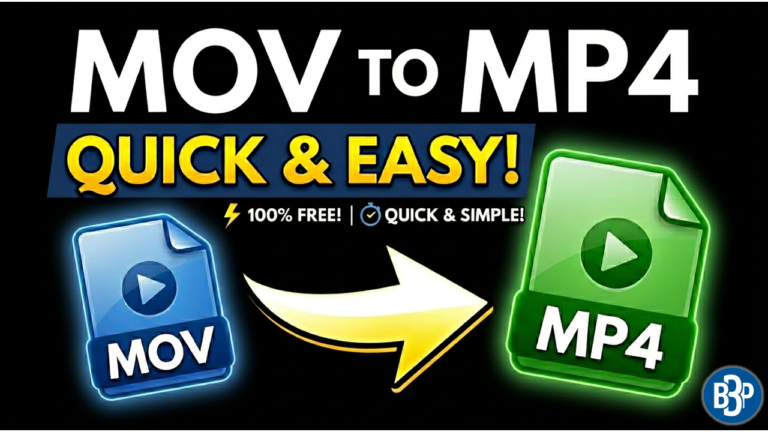
Convert MKV to MP4. While MKV files are great for high-quality video, they can be a nightmare for compatibility. Whether you’re trying to edit a recording in Premiere Pro, watch a movie on your iPad, or upload a clip to social media, you usually need an MP4.
The good news? You don’t need to buy expensive software or use shady online services to convert MKV to MP4. If you have VLC Media Player, you already have a powerful, professional-grade converter on your computer.
Watch the Step-by-Step Video
Why Use VLC for Video Conversion?
While there are hundreds of “free” converters online, most of them add watermarks, limit your file size, or compromise your privacy. VLC is:
- 100% Free: No hidden subscriptions or watermarks.
- Lossless Quality: You can convert containers without re-encoding the actual video stream.
- Safe: It’s open-source software with no malware or tracking.
- Local: No online cloud uploads needed. It all stays local on your PC
Step-by-Step: Convert MKV to MP4
1. Open the Conversion Tool
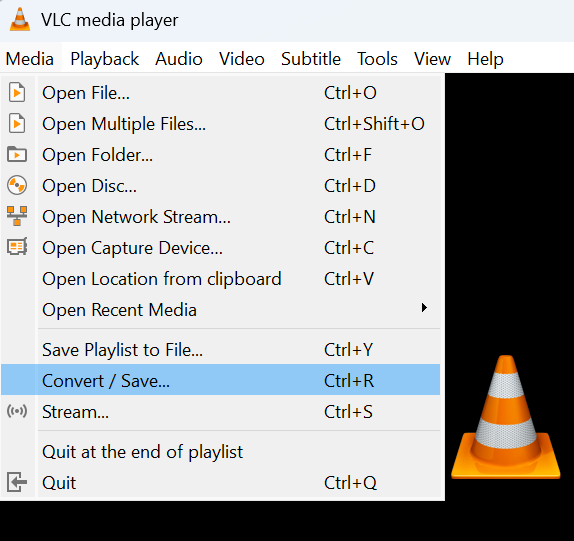
Launch VLC and click on Media in the top-left menu. Select Convert / Save (or use the shortcut Ctrl + R).
2. Add Your MKV File
In the File tab, click the Add button. Browse your computer and select the MKV file you want to change. Once added, click the Convert / Save button at the bottom.
3. Choose the MP4 Profile
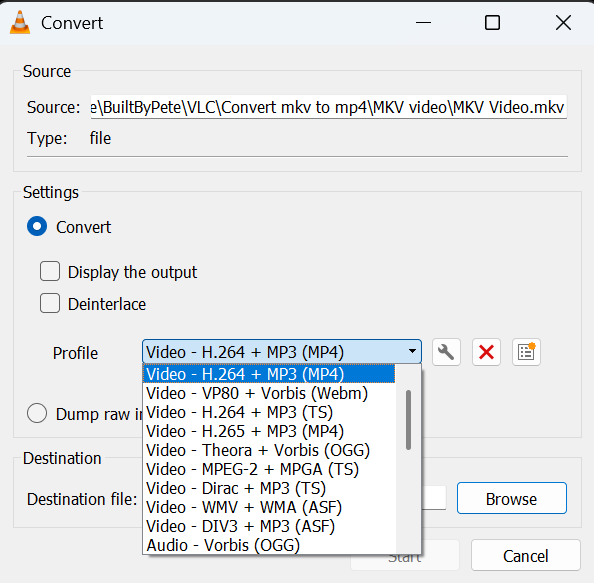
In the Settings window, look for the Profile dropdown. Select Video – H.264 + MP3 (MP4). This is the universal standard that works on almost every device in 2026.
4. The “Manual Extension” Trick (Don’t Skip!)
This is where most people get stuck. VLC sometimes fails to add the file extension automatically.
- Click Browse to select your destination folder.
- Give your file a name.
- Important: Manually type
.mp4at the very end of the name (e.g.,my-video.mp4). - Click Save.
5. Start the Conversion
Click Start. You’ll see the progress bar move across the bottom of VLC. Once it reaches the end, your new MP4 file will be waiting in your folder!
The Privacy Advantage: No Cloud, No Risk
One of the biggest reasons I recommend VLC over “free online converters” is Privacy.
When you use a web-based converter, you are uploading your personal video files to a third-party server. In many cases, you have no idea:
- Who owns those servers.
- If they are keeping a copy of your video.
- If your private data is being used to train AI models.
With VLC, everything stays local. The process to convert MKV to MP4 happens entirely on your own CPU and RAM. Your video never leaves your hard drive, it doesn’t require an internet connection to process, and there is zero risk of your personal files being “leaked” or sold by a cloud service. For anyone handling sensitive footage or family videos, this is the only secure way to convert.
Convert MKV to MP4: Frequently Asked Questions
Does converting MKV to MP4 lose quality?
If you use the standard H.264 settings in VLC, the quality loss is virtually invisible to the human eye. VLC essentially “re-wraps” the video into a new container.
Why won’t my converted file play?
If your file looks like a generic white icon, you likely forgot to type .mp4 at the end of the filename during Step 4. Simply rename the file and add the extension, and it should work!
Can I convert MKV to MP4 files in Bulk?
Yes! In the Add step, you can select multiple MKV files. VLC will queue them up and convert them one by one using the same settings.
Further Reading
- How to Find Website IP Address Using Command Prompt (Windows)
- Chrome High Memory Usage Fix: Simple 3 Step Guide
- 10 Pro Tips to Increase Your Internet Speed
- Stop Paying for Antivirus: How to Use the Hidden Windows Virus Remover (MRT)
Subscribe Now!
If you found this How to Convert MKV to MP4 guide interesting, be sure to check back here often and head over to the Built By Pete YouTube channel! where i’ll post all my DIY Solar Videos. We’ve also got hundreds of other DIY projects and smart home tutorials. Click here to subscribe and hit the notification bell so you never miss out on the tips, tricks, and step-by-step guides that will simplify your tech life.