How to Run CHKDSK to Repair Hard Drive Bad Sectors (Windows Guide)
Run CHKDSK to Repair Hard Drive. Is your computer running slowly, or are you getting “file system errors” when trying to open photos or documents? Your hard drive might have bad sectors. These are tiny spots on your drive that have become unreadable or damaged.
Fortunately, you don’t need to buy new software to fix this. Windows has a powerful built-in tool called CHKDSK (Check Disk) that can scan, identify, and repair these errors automatically.
Watch the 1-Minute Fix
What is CHKDSK?
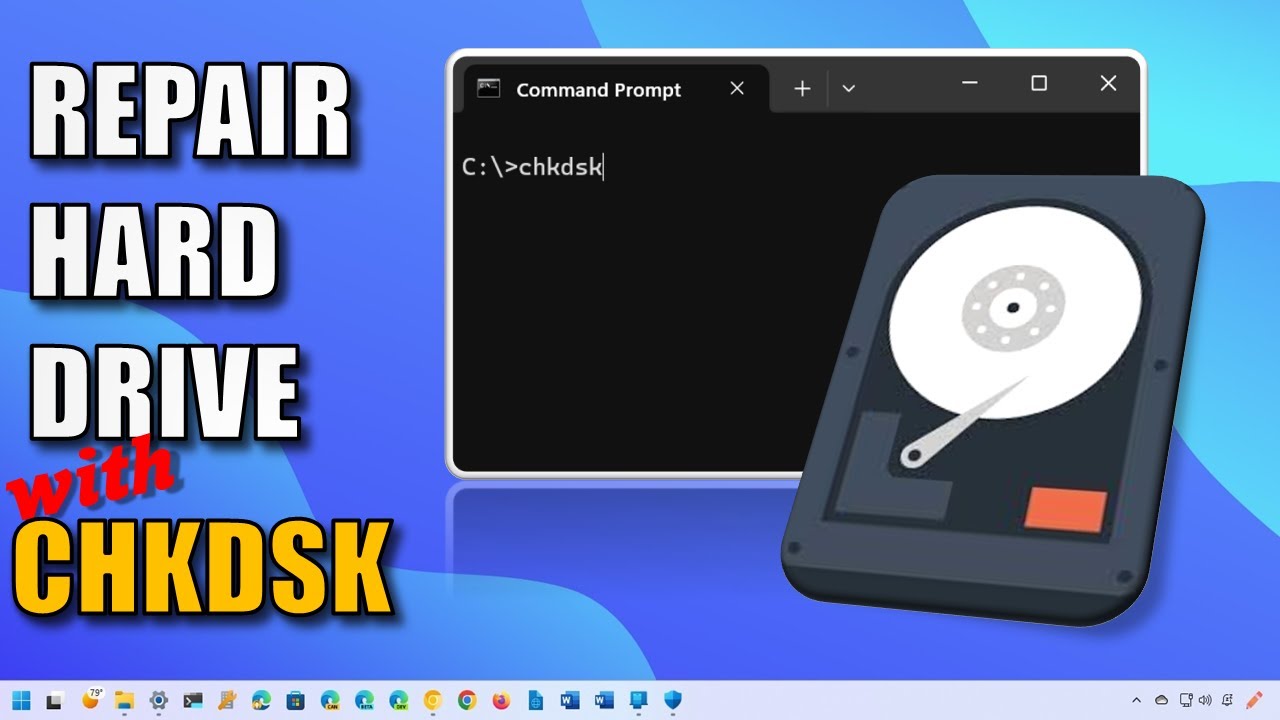
CHKDSK is a command-line utility used for scanning the health of your hard drives. While many people use it just to see if there are errors, its real power lies in its ability to repair bad sectors and recover readable information from them.
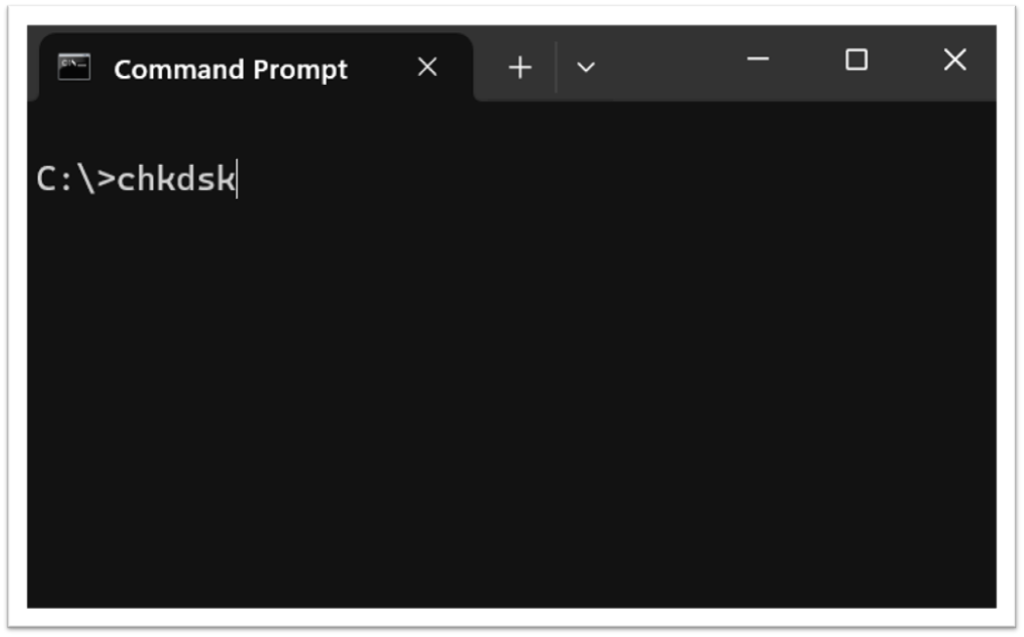
Step-by-Step: How to Run CHKDSK as Admin
To repair a drive, you must run the utility from the Windows Command Prompt using specific “parameters” or attributes. Follow these steps:
1. Open Command Prompt as Administrator
Search for “CMD” in your Windows start menu, right-click on it, and select “Run as Administrator.” This is a crucial step; the utility won’t have the permissions to fix drive errors without it.
2. Type the CHKDSK Command
In the black window, type the following command (replace C with the letter of the drive you want to scan):
chkdsk C: /f /r /x
3. Understanding the Parameters
Here is what those letters actually do:
/f: Tells Windows to fix any errors it finds on the disk./r: Tells Windows to locate bad sectors and recover readable information./x: Forces the volume to dismount first if necessary (this ensures the scan isn’t interrupted by other programs).
4. Wait for the Repair
Once you hit Enter, Windows will begin the scan. Depending on the size of your drive and the extent of the damage, this can take anywhere from a few minutes to several hours.
Note: If you are scanning your C: drive (where Windows is installed), you will be asked to schedule the scan for the next time you restart your computer. Type
Yand restart.
Why Should You Run This Regularly?
Running a CHKDSK scan once every few months is like a “health check” for your data. It helps you catch drive failure early. If CHKDSK consistently finds errors every time you run it, it might be a sign that your hard drive is physically failing, and you should back up your files immediately.
Pro Tip : If your hard drive is healthy but your internet is still feeling slow, it might not be a disk issue—check out my guide on how to run a continuous ping test to troubleshoot your network connection.
More Windows & Hardware Tips:
- Ethernet Cable Standards: Which Cable is Best for Your PC?
- Never Lose Your Connection: How to Setup Internet Failover
Did this fix your drive error? Let me know in the comments over on the YouTube channel!
CHKDSK Frequently Asked Questions (FAQ)
Q. What is the difference between chkdsk /f and chkdsk /r?
A: /f fixes errors on the disk, while /r locates bad sectors and recovers readable information. Running /r includes the functionality of /f but takes much longer.
Q: Can I stop a CHKDSK scan once it has started?
A: It is not recommended to stop CHKDSK once it’s running, as this can lead to file system corruption. It is best to let it finish, even if it appears stuck.
Q: How long does a CHKDSK repair usually take?
A: Depending on the size of your drive and the number of errors, it can take anywhere from 20 minutes to several hours for larger mechanical HDDs.
Subscribe Now!
If you found this guide interesting and are ready to stop guessing and start troubleshooting your own tech plus smart DIY, head over to the Built By Pete YouTube channel! We’ve got hundreds of other DIY projects and smart home tutorials. Click here to subscribe to the BuiltByPete youtube channel and hit the notification bell so you never miss out on the tips, tricks, and step-by-step guides that will simplify your tech life.