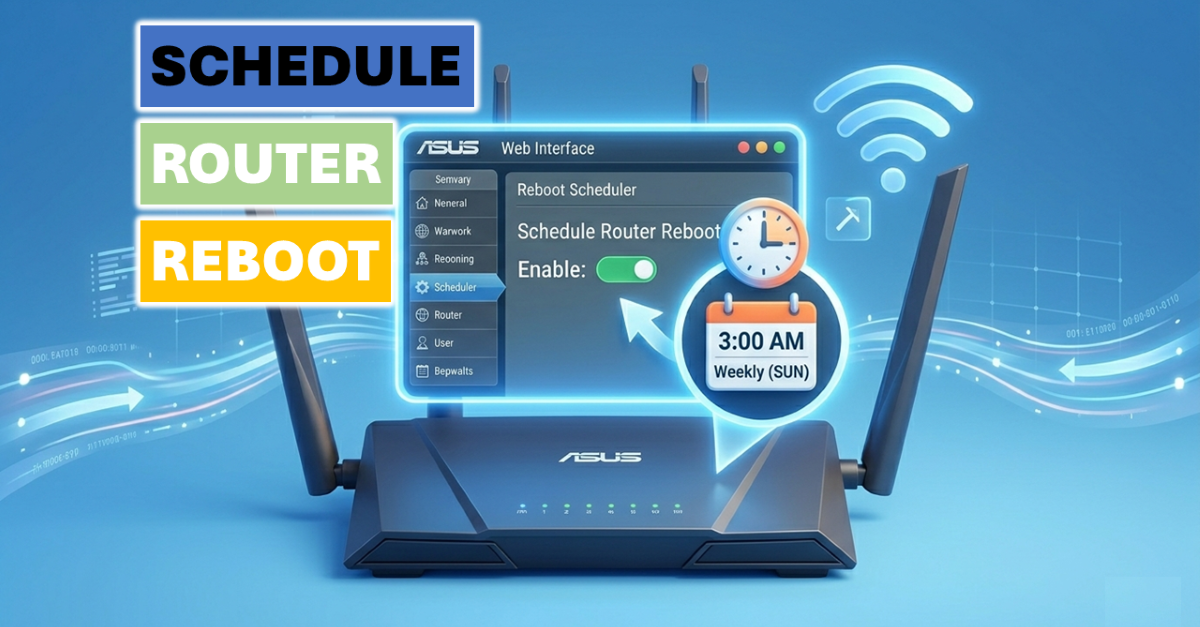
Schedule Router Reboot: Why Your Wi-Fi Needs It (And How to Do It Easily on ASUS)
Schedule router reboot automation, and you can completely avoid this classic tech headache: you’re right in the middle of a streaming session, an intense online match, or an important Zoom call, and suddenly your internet drops. You march over to the router, pull the power cord, wait ten seconds, plug it back in, and—magically—everything works again.
“Have you tried turning it off and on again?” is the ultimate tech support cliché for a reason. It works. But in a smart home environment, you shouldn’t have to manually babysit your networking gear.
In my recent video, ASUS Router Scheduled Auto Reboot, I showed you exactly how to automate this task so your network stays fresh without you ever lifting a finger. Today, we’re going a bit deeper into why this works and exploring a few other clever ways to automate a reboot if you have older hardware.
Watch The Schedule Router Reboot Video
Want to see the exact step-by-step UI walkthrough? Check out the full video guide here, or keep scrolling for more detail:
The Tech Science: Why Do Routers Need a Fresh Start?
It’s easy to think of a router as a simple plastic box with blinking lights, but it’s actually a mini-computer. It has its own operating system, a processor, and a limited amount of RAM (Random Access Memory).
Over weeks or months of continuous runtime, a few things start happening under the hood:
- Memory Leaks: Routers handle thousands of data packets daily from phones, smart TVs, and IoT devices. Sometimes, the router’s software fails to release memory back into the system after a device disconnects. These “memory leaks” slowly drain your available RAM, causing the router to lag.
- Overcrowded NAT Tables: Your router uses a Network Address Translation (NAT) table to keep track of which device requested what internet connection. If old, stale connections don’t close properly, the table fills up, dragging down your overall network performance.
- Wi-Fi Congestion & Band Steering Bugs: Wireless environments change constantly. When a router boots up, it scans for the clearest wireless channel. Additionally, routers occasionally get “stuck” when trying to nudge a device from the slow 2.4GHz band to the faster 5GHz band. A reboot resets the channel scan and gives your devices a clean connection.
A simple scheduled reboot flushes the RAM, clears out the NAT tables, and optimizes your Wi-Fi channels instantly. While rebooting once a month is great, I personally recommend a weekly schedule during the early morning hours so it never interrupts your day.
Method 1: The Built-In Way (ASUS Web Interface & App)
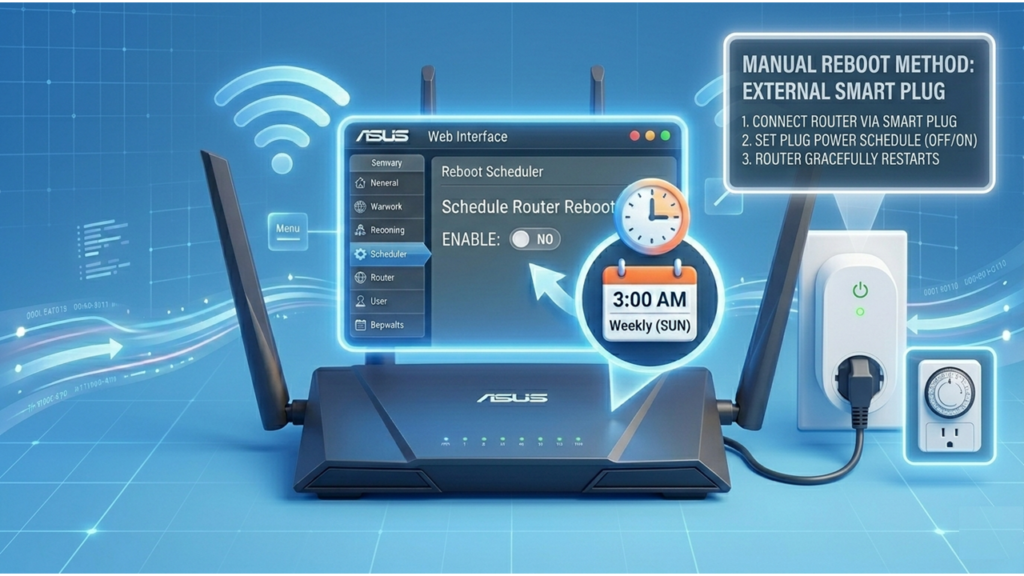
If you own a modern ASUS router, you’re in luck. ASUS builds an automated reboot scheduler directly into their firmware. As I demonstrated in the video tutorial, you can set this up in two ways:
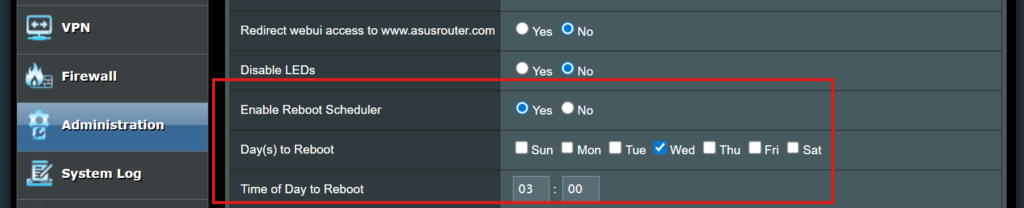
1. Using the ASUS Router Web Interface (PC)
- Open your web browser and log into your router dashboard (usually by typing
192.168.50.1orrouter.asus.com). - Navigate to Administration on the left-side menu.
- Click on the System tab at the top.
- Scroll down to find the System Maintenance or Reboot Scheduler section.
- Toggle Enable Reboot Scheduler to Yes.
- Choose your day (e.g., Sunday) and time (e.g., 3:00 AM) and hit Apply.
2. Using the ASUS Router Management App (Mobile)
If you prefer managing things from your phone, you don’t even need a computer:
- Open the ASUS Router App on your smartphone.
- Tap on the Settings tab (the gear icon).
- Select System Settings.
- Tap Scheduled Reboot.
- Enable the scheduler, set your desired day and time, and save your changes.
What If Your Router Doesn’t Have a Built-In Schedule Router Reboot function?
While ASUS makes this incredibly easy, older or basic ISP-provided routers often lack a built-in reboot feature. If that’s your situation, you can use these smart workarounds to achieve the exact same “set-it-and-forget-it” result:
Method 2: Use a Smart Plug with “Local” Scheduling
You can plug your router into a smart plug and set a routine to turn the power off at 3:00 AM and back on at 3:01 AM.
The Catch: Most standard Wi-Fi smart plugs lose their minds when the Wi-Fi shuts down. If the plug relies entirely on the cloud, it won’t be able to receive the “turn back on” command after it kills the router’s internet!
- The Solution: Use smart plugs that support local schedules (meaning the schedule is saved directly on the plug’s internal memory). Smart plugs using Zigbee, Thread, or Matter local hubs are ideal for this because they don’t care if the main internet connection drops for a minute.
- Alternatively, there are specialized hardware options like the Keep Connect smart plug, which specifically monitors your internet connection and automatically power-cycles the outlet if it detects a drop in connectivity.
Method 3: The Old-School Mechanical or Digital Outlet Timer
If you want a strictly low-tech, bulletproof alternative, grab a cheap plug-in outlet timer from the hardware store.
- Mechanical Timers use physical pins to cut power. They are incredibly reliable, but they usually operate in 15-minute or 1-hour chunks—meaning your internet would be offline for at least 15 minutes.
- Digital Outlet Timers allow for minute-level control. You can program it to cut the power for exactly one or two minutes once a week, making it a perfect offline workaround for older hardware.
What If You Have ASUS AiMesh Nodes?
If you are running a whole-home mesh network using ASUS AiMesh, you might be wondering: Do I need to log into every single satellite node to set this up?
The short answer is no. ASUS handles this brilliantly from a centralized dashboard.
When you configure a schedule router reboot on your primary ASUS router, that command automatically pushes down to all of your connected AiMesh nodes. You do not have to configure each access point individually.
How the AiMesh Reboot Sequence Works:
To prevent your smart devices from losing their minds, ASUS routers execute a sequential “graceful” reboot rather than knocking the entire network offline at the exact same millisecond:
- The Primary Router Restarts First: The main router initiates its software reset to clear its memory and NAT tables.
- The Nodes Follow Sequentially: Once the primary router is back online and broadcasting, the system signals your AiMesh nodes to reboot one by one.
Built by Pete Tip: Because the satellite nodes have to wait for the main router to spin back up before they start their own reboot cycle, expect your entire mesh network to take about 3 to 5 minutes to completely stabilize. This is why picking a middle-of-the-night slot like 3:00 AM is so critical if you use a mesh setup!
By managing everything from one central setting, you ensure that your entire mesh coverage area stays perfectly synchronized, free of memory leaks, and optimized on the clearest wireless channels.
Keep Your Expectations Realistic
Automating a reboot is a brilliant preventive maintenance step that will save you countless troubleshooting headaches. However, it won’t fix everything. If your router is a decade old, has poor physical placement behind a thick concrete wall, or simply can’t handle your 50+ smart home devices, a reboot won’t fix a fundamentally weak signal. For coverage issues, you’ll still want to look into an upgrade or a proper mesh system.
But for keeping a healthy network performing at its absolute peak? A weekly automated reset is the easiest win in home tech.
Want to see the exact step-by-step UI walkthrough? Check out the full video guide here:
Schedule Router Reboot FAQ
How often should I schedule router reboot cycles?
For most home networks, weekly is the absolute sweet spot. While some heavy users prefer a daily routine, a weekly refresh is usually more than enough to clear out memory leaks and keep your connection snappy. If you have an older or budget-tier ISP router that struggles under the weight of too many smart devices, a daily schedule router reboot configuration might give you better stability.
Will I lose my Wi-Fi password or custom settings?
No, absolutely not. When you schedule router reboot tasks, it simply performs a clean restart of the system software—the exact same thing that happens when you manually flip a power switch or unplug the cord. Your Wi-Fi network name (SSID), password, parental controls, and static IP assignments are all safely stored in the router’s permanent flash memory.
What is the best time of day to schedule router reboot automation?
The best time to trigger an automatic restart is during your household’s lowest network activity, typically between 2:00 AM and 5:00 AM. Setting up your schedule router reboot schedule for the middle of the night ensures that nobody gets kicked out of an online gaming match, drops a late-night work download, or interrupts an automated smart home security backup.
Can restarting my router too often wear out the hardware?
Natively doing it through the software will not harm your device. When you use the ASUS app or web interface to schedule router reboot routines, the operating system executes a graceful shutdown and startup sequence. This is actually much gentler on the router’s internal components than abruptly ripping the physical power cable out of the back of the machine.
My router doesn’t have an auto-restart option in the settings. Can I still schedule router reboot events?
Yes, you can easily bypass missing firmware features by using external hardware. If your current router lacks the native capability to schedule router reboot tasks, you can plug it into a cheap digital outlet timer or a smart plug that supports local, offline scheduling (like a Zigbee, Thread, or Matter-compatible plug) to automate a quick one-minute power cut every week.
Further Reading
- Local Network Speed Test (The Easy & Free Way)
- ASUS RP-AX58 Setup Guide: Easy Way to Add an AiMesh Node for Perfect Wi-Fi
- Home Networking 101: The Ultimate Home Networking for Beginners Guide to a Faster, Smarter Home
- How to Lock Down Your ASUS Router Security: Restrict Admin Access by IP Address
Subscribe Now!
If you found this schedule router reboot guide helpful and are ready to stop guessing and start troubleshooting your own tech and smart DIY, head over to the Built By Pete YouTube channel! We’ve got hundreds of other DIY projects and smart home tutorials. Click here to subscribe and hit the notification bell so you never miss out on the tips, tricks, and step-by-step guides that will simplify your tech life.