How to Stream Radio on VLC: Use This Hidden Feature to Access 1,000s of Stations for Free
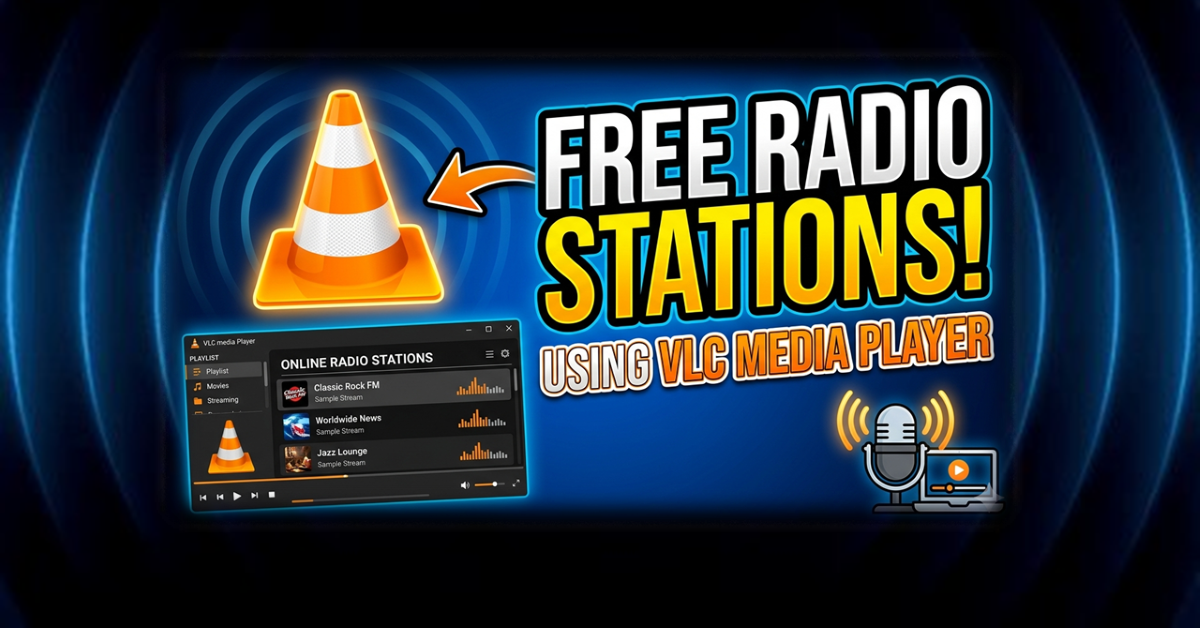
Did you know you can stream radio on VLC? We all know VLC Media Player as the “Swiss Army Knife” of video players. It plays almost any file you throw at it, it’s lightweight, and it’s free. But did you know it’s also one of the best free radio tuners for your PC?
Most people use Spotify or web browsers to listen to music while they work, but browsers can be resource-heavy and Spotify has ads (unless you pay up). Today, I’m showing you a “hidden” feature in VLC that lets you stream thousands of live radio stations from around the world—completely free.
Why Stream Radio on VLC?
- Zero Ads: No intrusive pop-ups or audio ads from the player itself.
- Low System Impact: Unlike a Chrome tab that eats up RAM, VLC runs quietly in the background.
- Huge Variety: From lo-fi beats to international news and niche genres, it’s all there.
How to Access the Hidden Radio Directory
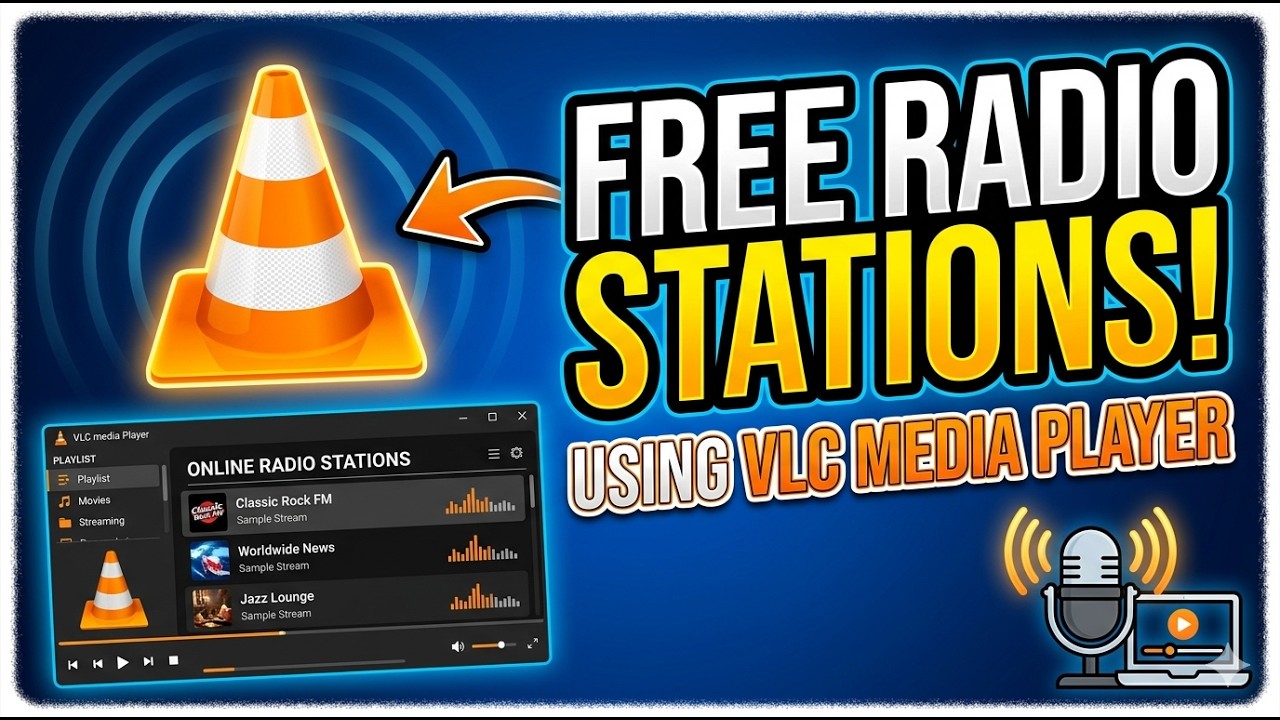
If you want to see the step-by-step in action, check out my quick 1-minute stream radio on VLC tutorial below:
The Step-by-Step Guide:
- Open VLC: Make sure you’re running the latest version.
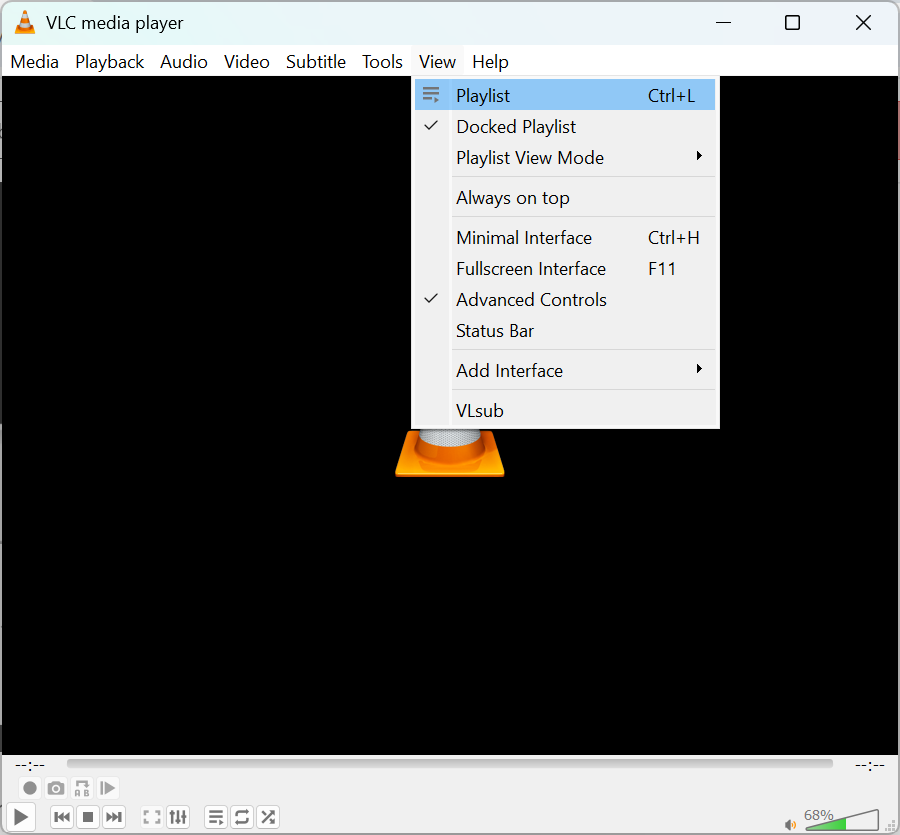
- Toggle the Playlist: Go to the top menu, select View, and click on Playlist (or just hit
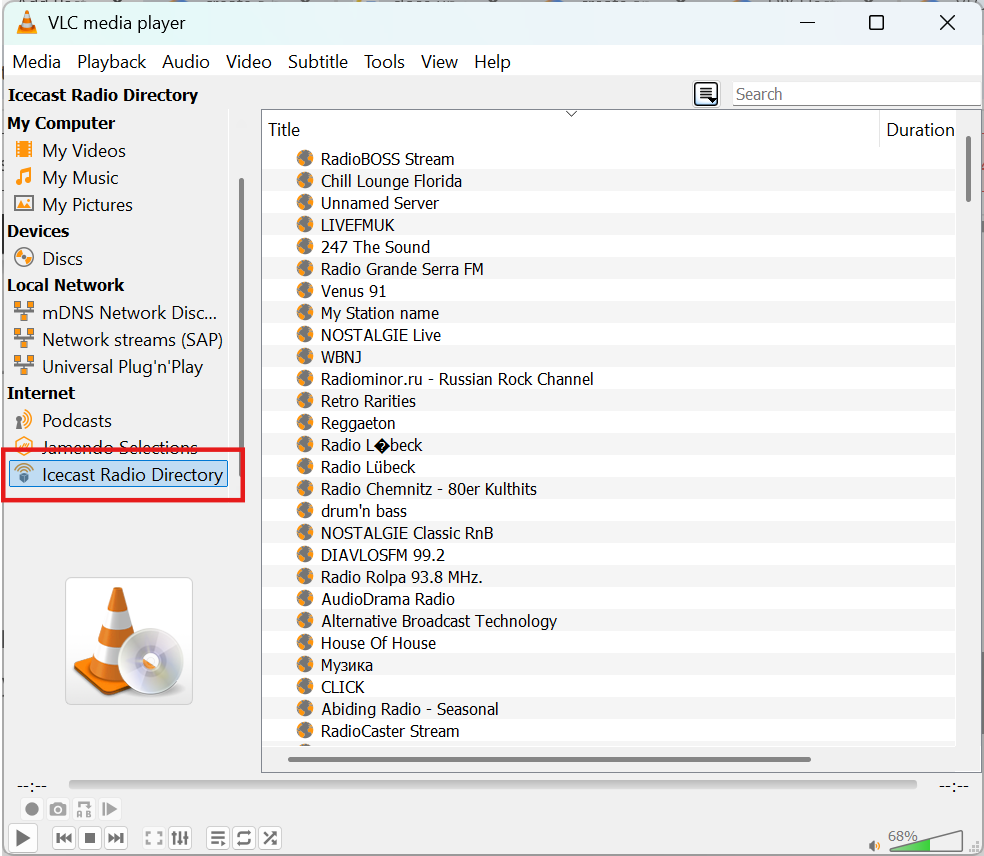
Ctrl + L). - Find the Internet Section: On the left-hand sidebar, scroll down to the Internet category.
- Open Icecast: Click on Icecast Radio Directory.
- Wait for the Magic: Give it a few seconds to ping the servers. Suddenly, the right-hand pane will fill with thousands of live streams. Double click a station to stream radio on VLC.
- Search & Play: You can use the search bar at the top to find specific genres (like “Jazz” or “Rock”) or just double-click a station to start listening.
Pro Tip: Recording Your Favorite Streams
One of the coolest parts when you stream radio on vlc is that you can actually record the stream. If you hear a set or a track you love, just hit the Record button (if you don’t see it, go to View > Advanced Controls) and VLC will save the audio directly to your computer.
Summary
Whether you’re gaming and want some background tunes or you’re working and need some deep-focus ambient noise, the Icecast directory in VLC is a goldmine. It’s built-in, it’s fast, and it’s one less subscription you have to worry about.
Is it really free to stream radio on VLC?
Yes! VLC Media Player is an open-source software, and most of the radio directories it accesses (like Icecast) provide free streams. As long as you have an internet connection, you can listen to thousands of stations without a subscription.
Why is the Icecast Radio Directory not loading any stations?
If the list appears empty, it usually means VLC is still fetching the data from the servers. Give it a few moments. If it still doesn’t load, try clicking the “Refresh” button or check your internet connection. In some cases, a firewall may be blocking VLC from accessing the directory.
How do I find a specific radio station by name?
Once you have the Icecast Radio Directory open in your playlist, you can use the Search bar at the top right of the VLC window. Type the name of the station or a genre (e.g., “Jazz” or “BBC”) to filter the results instantly.
Can I save my favorite radio stations so I don’t have to search for them every time?
Absolutely. When a station is playing, you can right-click it in the playlist and select “Add to Playlist” or simply save the current playlist as a file on your computer (Media > Save Playlist to File). Next time, just open that file to jump straight to your station.
What should I do if a stream keeps buffering or cutting out?
Buffering is usually caused by a slow internet connection or a high-traffic server. You can try to increase the “caching” value in VLC:
Go to Media > Open Network Stream.
Check the box for “Show more options” at the bottom.
Increase the “Caching” value (e.g., from 300ms to 3000ms).
Can I record the radio stream while I’m listening?
Yes. To do this, you need to enable “Advanced Controls.” Go to View > Advanced Controls. A red record button will appear above the play button. Simply click it to start recording and click it again to stop; the file will typically be saved in your “Videos” or “Music” folder.
Does this work on the VLC mobile app for Android or iOS?
While the mobile version of VLC supports network streams, it does not have the built-in Icecast directory found on the desktop version. To listen on mobile, you will need to manually paste the “Stream URL” of the radio station into the “Stream” or “Network” tab of the app.
Further Reading
- 10 Pro Tips to Increase Your Internet Speed
- Local Network Speed Test (The Easy & Free Way)
- ASUS RP-AX58 Setup Guide: Easy Way to Add an AiMesh Node for Perfect Wi-Fi
- Home Networking 101: The Ultimate Home Networking for Beginners Guide to a Faster, Smarter Home
- How to Lock Down Your ASUS Router Security: Restrict Admin Access by IP Address
Subscribe Now!
If you found this Hidden Feature feature to stream radio on VLC helpful and are ready to stop guessing and start troubleshooting your own tech and smart DIY, head over to the Built By Pete YouTube channel! We’ve got hundreds of other DIY projects and smart home tutorials. Click here to subscribe and hit the notification bell so you never miss out on the tips, tricks, and step-by-step guides that will simplify your tech life.