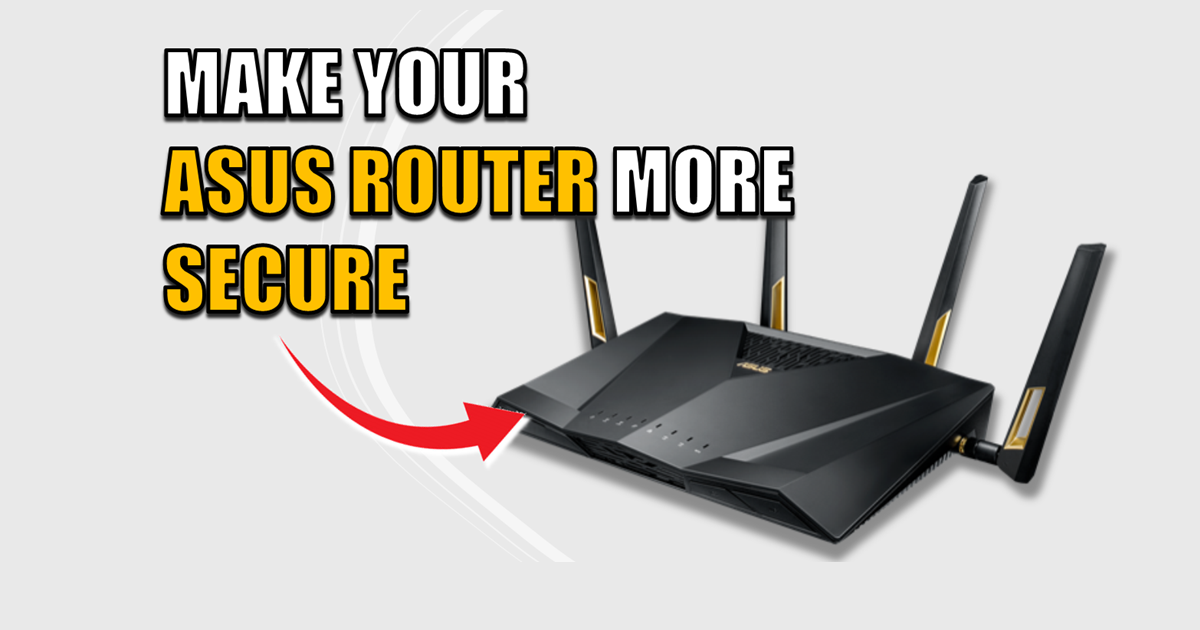
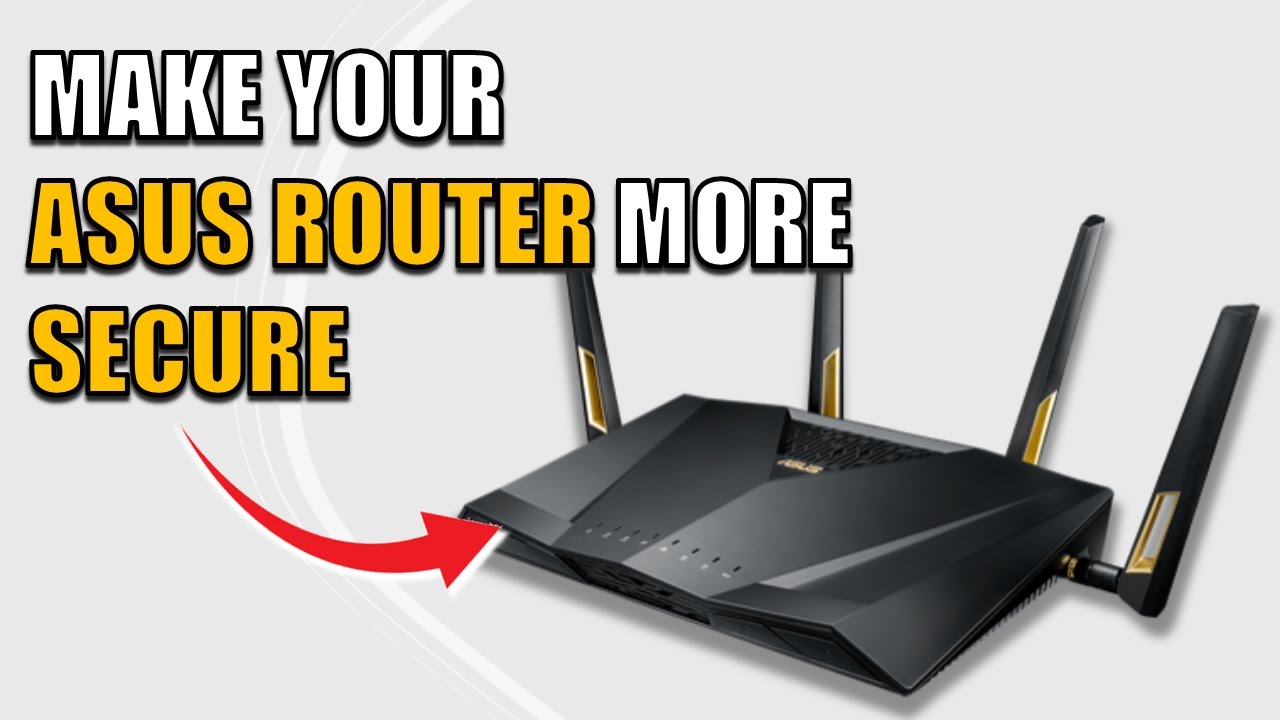
How to Lock Down Your ASUS Router Security: Restrict Admin Access by IP Address
ASUS Router Security. If you’ve been following my ASUS router series, you know that security isn’t just about a strong Wi-Fi password. It’s about layers. Most people leave their router’s “front door” (the web interface) open to any device on the network. If a guest or a compromised device gets your password, they have full control.
Today, I’m showing you how to add a third layer of security: IP-based access restrictions. By the end of this guide, only your specific trusted devices will even be allowed to see the login screen.
Watch the Quick ASUS Router Security Setup
The 3-Layer ASUS Router Security Model
By following this guide, you are forcing an intruder to have three separate pieces of information to access your settings:
- Your Admin Username
- Your Admin Password
- Your Specific Device IP Address
Prerequisite: Set a Fixed IP First
Before you restrict access, you must ensure the device you are using (like your main laptop) has a fixed IP address. If your IP changes (DHCP), you could lock yourself out of your own router!
- Related Guide: Check out my video on How to Set a Static IP on ASUS Routers before proceeding.
Step-by-Step: Restricting Web Interface Access

1. Navigate to Administration
Log into your ASUS router and scroll to the very bottom of the left-hand menu. Click on Administration.
2. Open the System Tab
Once inside the Administration menu, select the System tab at the top of the page.

3. Enable Access Restrictions
Scroll to the bottom of the System page and find Enable Access Restrictions. Switch this to Yes.

4. Authorize Your Trusted Device
A new table will appear.
- Select Device: Click the drop-down box to see all connected devices. Choose your main computer or laptop.
- Access Type: I recommend checking both Web Access and SSH for maximum security.
- Add & Apply: Click the plus (+) icon to add the device to the list, then scroll down and hit Apply.

What Happens Now?
Once you hit Apply, the router will only accept login attempts from the IP addresses on that list. If anyone else tries to access your router’s IP in a browser, the connection will simply be refused.
It’s a simple, two-minute tweak that turns your router into a fortress.
More Router Tips:
Common Pitfalls (And How to Avoid Them)
Setting up access restrictions is powerful, but it’s easy to trip up if you miss a step. Here is how to stay out of trouble:
- The “Double-Static” Mistake: Don’t just set a static IP on your laptop’s network settings. You must set a DHCP Reservation within the ASUS router settings first. If you don’t, the router might try to give your “static” IP to another device, causing a conflict and locking you out.
- The VPN Trap: If you use a VPN on your computer, your internal IP address might change or be hidden when the VPN is active. If you can’t see the login page, try turning off your VPN to return to your “whitelisted” local IP.
- New Device Lockout: If you buy a new laptop, it will have a different MAC address and IP. Pro Tip: Always authorize at least one secondary device (like a tablet or phone) so you have a backup way to log in and add your new machine to the list.
- Wired vs. Wireless: Whenever you are making major security changes to your router, try to do it over a wired Ethernet connection. It is much more stable than Wi-Fi and prevents “ghost” lockouts if the Wi-Fi signal drops during the “Apply” phase.
Frequently Asked Questions (FAQ)
What happens if I get locked out of my ASUS router?
If your device’s IP address changes and you haven’t authorized the new one, you will be blocked from the login screen. To fix this, you have two options:
Use another authorized device: Log in from a secondary computer or tablet that you previously added to the whitelist.
Factory Reset: If you are totally locked out, you will need to press and hold the physical Reset button on the back of the router for 10 seconds. This will wipe all settings, including the IP restriction.
Can I add more than one device to the list?
Yes! In fact, I highly recommend adding at least two devices (e.g., your main laptop and a secondary tablet). This ensures that if one device fails or is lost, you still have a “backdoor” into your settings.
Does this affect the ASUS Router mobile app?
Generally, these restrictions apply to the Web Interface (GUI) and SSH. However, for maximum security, I always recommend managing your router from a wired PC whenever possible.
Do I really need a Static IP for this to work?
Yes. If you use a dynamic IP, your router might give your laptop a different address tomorrow. If that happens, the router won’t recognize your “new” IP, and you’ll be locked out. Always set a DHCP Reservation in the “LAN” settings first.
Does this protect me from outside hackers?
This protects your internal network. If a hacker gets onto your Wi-Fi (or a guest tries to be clever), they won’t even be able to see your login page. To protect against outside threats, ensure “Remote Access from WAN” is turned OFF in the same Administration menu.
Glossary: Networking Terms Used in This Guide
If some of the jargon in this post sounds like a foreign language, don’t worry! Here is a quick breakdown of what these terms actually mean for your home network:
- IP Address: Think of this as the “digital home address” for every device on your network.
- Static IP / DHCP Reservation: This tells your router to always give the same IP address to the same device (e.g., “Pete’s Laptop always gets 192.168.1.50”).
- SSH (Secure Shell): A way for power users to “talk” to the router using text commands rather than the visual web page. If you don’t use it, keep it restricted or disabled!
- Web Interface (GUI): The “Graphical User Interface”—basically the website you see when you type
192.168.1.1into your browser. - Whitelisting: A security method where you block everyone by default and only allow specific “approved” guests in.
- WAN (Wide Area Network): The “outside” internet. You generally want to keep your admin settings hidden from the WAN at all times.
Subscribe Now!
If you found this ASUS Router Security guide interesting and are ready to stop guessing and start troubleshooting your own tech plus smart DIY, head over to the Built By Pete YouTube channel! We’ve got hundreds of other DIY projects and smart home tutorials. Click here to subscribe to the BuiltByPete youtube channel and hit the notification bell so you never miss out on the tips, tricks, and step-by-step guides that will simplify your tech life.