DIY Network Status Monitor: Build a Colour-Coded PING Tool in 5 Minutes
Introduction
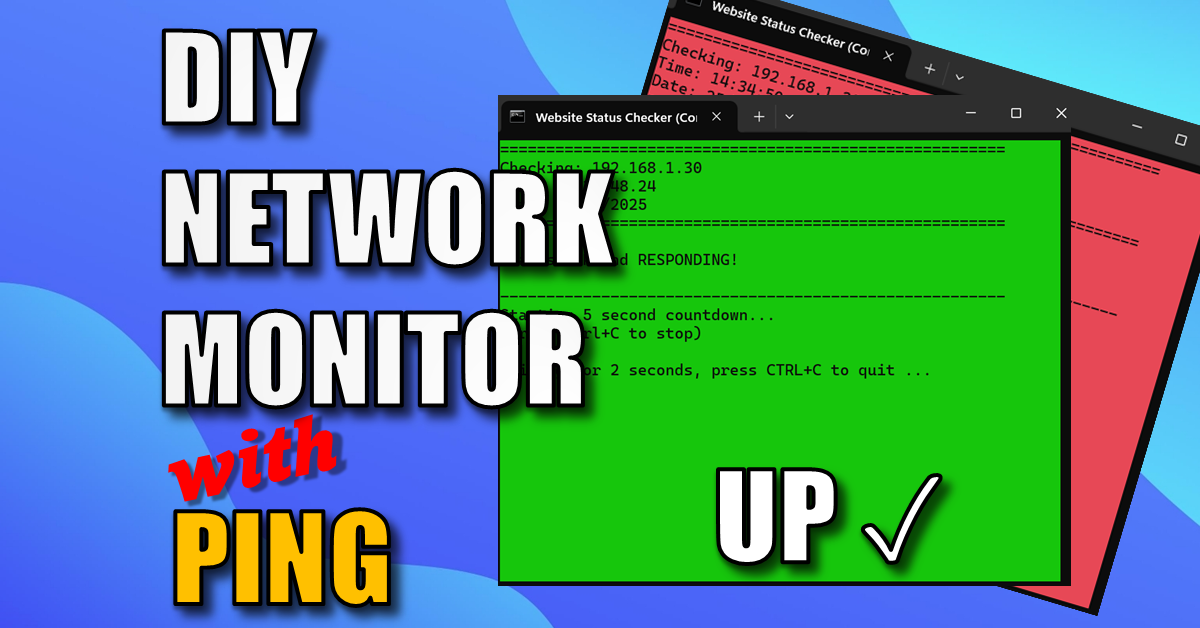
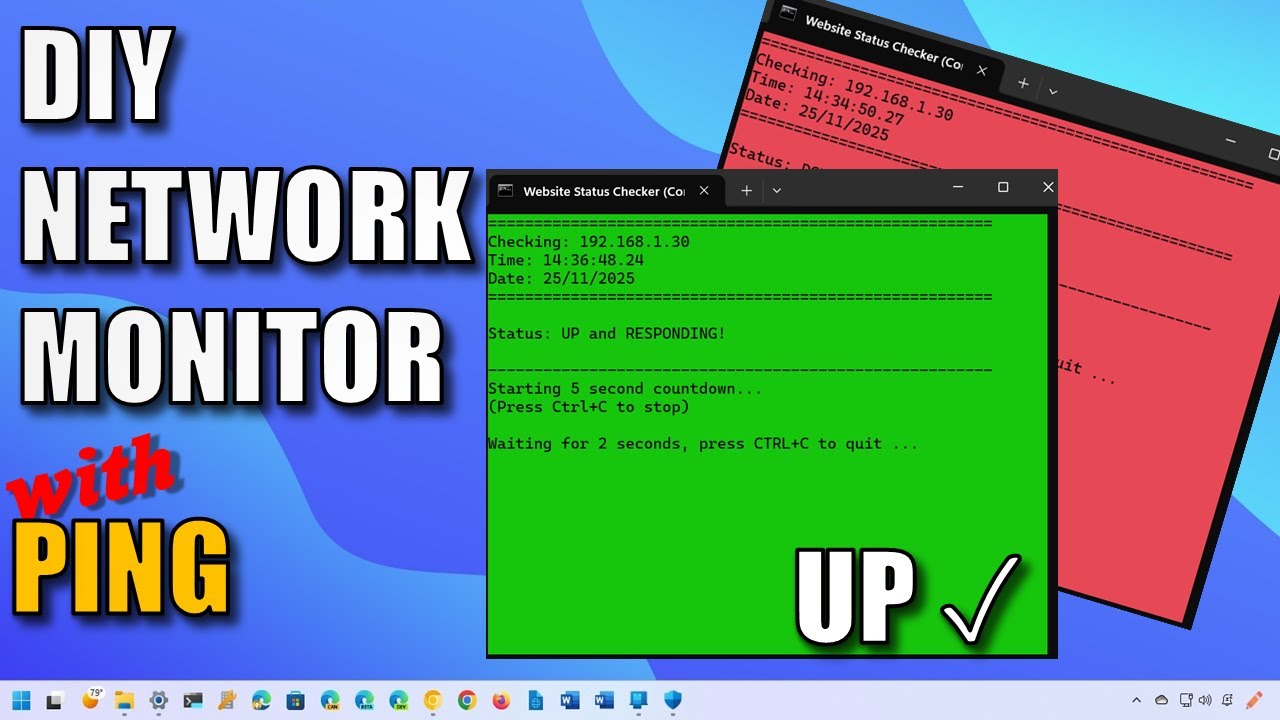
Create your own DIY Network Monitor. Tired of manually guessing whether a website or server is down? This project is an essential, beginner-friendly network troubleshooting tool you can build in minutes! We’re going to walk through creating a simple, colour-coded PING status monitor using nothing but a basic Windows Batch File script. This lightweight tool will instantly check the network availability for any website or IP address, displaying a specific color for UP and a different color for DOWN.
This script is customizable and uses the native PING utility to create a continuous, easy-to-read status checker right on your desktop.
See The Network Monitor In Action
What You Will Need
You only need two things to complete this entire project:
- A PC running Windows 10 or Windows 11.
- Any standard text editor (like Notepad).
Batch File Breakdown: The Core Logic
The power of this script lies in two key components: the PING command and the system’s %ERRORLEVEL% variable. The script executes the PING, immediately checks the result, and uses an IF statement to apply a custom color code:
- Result 0: PING successful (Site is UP).
- Result 1 (or greater): PING failed (Site is DOWN).
Step-by-Step Build Guide
1. Create the File
Open your text editor (like Notepad).
2. Copy and Paste the Code
Copy the complete code below and paste it into your editor. This script handles configuration, user input, and continuous checking.
Code snippet
@echo off
title Website Status Checker (Continuous Mode)

:: ----------------------------------------------------------------------
:: 1. Configuration
:: ----------------------------------------------------------------------
set "success_color=A0"  :: Color A0: Light Green background (A), Black text (0) - Site UP
set "failure_color=C0"  :: Color C0: Light Red background (C), Black text (0) - Site DOWN
set "delay_seconds=5"   :: How long to wait between checks (in seconds)

:: Set initial color (e.g., White on Black: F0)
color F0
cls

echo =======================================================
echo        Website Status Checker
echo =======================================================
echo.

:: Ask the user for the target URL or IP address (only asked once)
set /p "target_url=Please enter the website address (e.g., www.google.com or 8.8.8.8): "
echo.

echo Starting continuous check for %target_url%...
echo -------------------------------------------------------
echo.
echo *** PRESS Ctrl+C TO STOP THE CHECKING LOOP ***
echo.
echo -------------------------------------------------------
pause
cls

:: ----------------------------------------------------------------------
:: 2. Continuous Monitoring Loop
:: ------------------------------------------------------
:CHECK_LOOP
cls

echo =======================================================
echo Checking: %target_url%
echo Time: %time%
echo Date: %date%
echo =======================================================

:: Execute Ping and Capture Result
:: PING -n 1: Send only 1 echo request.
:: -w 1000: Wait 1000ms (1 second) for a response.
ping -n 1 -w 1000 %target_url% > nul

:: ----------------------------------------------------------------------
:: 3. Check Error Level and Set Color
:: ----------------------------------------------------------------------
if %ERRORLEVEL% equ 0 (
:: Success: Site is UP
color %success_color%
echo.
echo Status: UP and RESPONDING!
echo.
) else (
:: Failure: Site is DOWN or unreachable
color %failure_color%
echo.
echo Status: DOWN or UNREACHABLE!
echo.
)

echo -------------------------------------------------------

echo Starting %delay_seconds% second countdown...
echo (Press Ctrl+C to stop)

:: Wait for the specified delay before looping again.
timeout /t %delay_seconds% /nobreak

:: Go back to the start of the loop
GOTO CHECK_LOOP
3. Customize the Colors (Optional)
If you want different colors, modify the success_color and failure_color variables at the top of the script. The first character sets the background color, and the second sets the text color (e.g., 07 is Black background, White text).
4. Save the File
This is the most critical step:
- Go to File > Save As.
- Change “Save as type” to “All Files (*.*)”.
- Name the file with a
.BATextension (e.g.,StatusChecker.bat).
5. Run the Monitor
Double-click the saved .BAT file to execute the script. The command window will open, ask you for the address, and then begin the continuous, color-coded monitoring loop!
Watch the full video on the Built By Pete channel to see the script demonstrated
Network Monitor FAQ
Do I need to install any special software to run this?
No. This tool is built using a simple Windows Batch script. It uses Notepad (which is built into Windows) and the native CMD environment. There is no need for third-party downloads or complex coding environments.
Can I monitor multiple IP addresses at once with this script?
The script provided in the video is designed to focus on one “node” (like a Plex server or a website) at a time. However, you can simply open the .bat file multiple times in different windows to monitor several devices simultaneously.
Why does the screen turn red even when I know my internet is working?
This usually happens for one of two reasons:
The specific device is down: Your internet might be fine, but the specific server or Raspberry Pi you are pining is offline.
Firewall Settings: Some devices are set to ignore “ICMP Echo Requests” (pings) for security. Check that the device you are monitoring is allowed to respond to pings.
How do I change the frequency of the checks?
In the code, look for the timeout /t 5 command. The number 5 represents seconds. If you want to check every minute, change it to timeout /t 60.
Can I use this to monitor a website like Google or BBC?
Yes! When the script asks for an IP, you can type a URL (e.g., google.com) instead of a numerical IP address. The script will automatically resolve the address and start monitoring the site’s availability.
This powerful little DIY Network Monitor tool will instantly check network availability for any website (like Google, Facebook, or your own server) or IP address. If the ping succeeds (site is UP), the text turns one color, and if it fails (site is DOWN), it turns another. It’s an essential, easy-to-use network troubleshooting tool you can build in less than 5 minutes! Watch the video for a follow along guide.
Subscribe Now!
If you found this guide interesting and are ready to stop guessing and start troubleshooting your own tech plus smart DIY, head over to the Built By Pete YouTube channel! We’ve got hundreds of other DIY projects and smart home tutorials. Click here to subscribe to the BuiltByPete youtube channel and hit the notification bell so you never miss out on the tips, tricks, and step-by-step guides that will simplify your tech life.