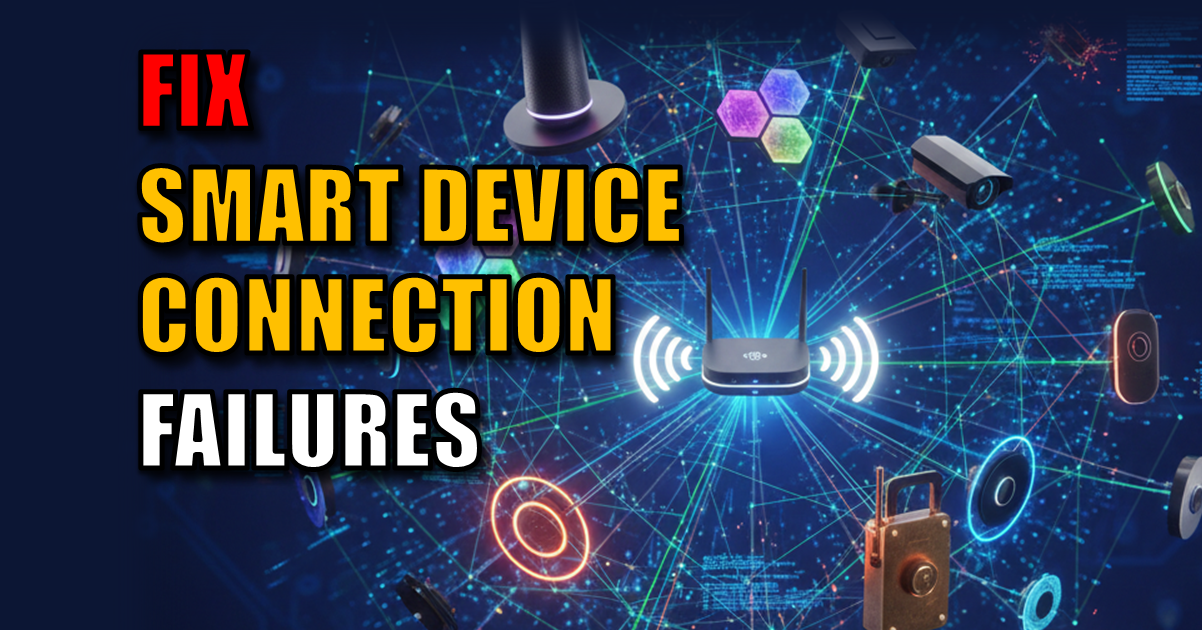
Smart Device Connection Failure and 6 Tips to Fix It.
From “Device Offline” to 99.9% Smart Home Uptime
Smart device connection failure. We’ve all been there: You ask your smart assistant to turn off the lights, only to be met with a spinning blue ring and a polite, “I’m sorry, I’m having trouble connecting to the internet.” Smart home technology is supposed to be effortless, but when your smart plugs, cameras, and bulbs start dropping offline, it feels like you’ve moved back to the Stone Age.
If you’re running a smart home with 30, 50, or 100+ devices, you’ve likely realized that standard consumer networking isn’t always built for this load. In my years of building my smart home and optimizing high-density DIY networks, I’ve learned that connection failures are rarely about the device—they are almost always about the infrastructure.
This guide moves beyond “unplug it and plug it back in” to help you engineer a professional-grade home network.
1. The 2.4GHz vs. 5GHz Trap
Most modern routers are Dual-Band, broadcasting two frequencies: 2.4 GHz and 5 GHz.
- 5GHz: Fast, but short range. Great for your laptop or 4K streaming.
- 2.4GHz: Slower, but travels through walls much better.
The Problem: Almost all low-power IoT devices (bulbs, plugs, sensors) only work on 2.4 GHz. If your router has “Smart Connect” enabled (combining both bands into one name), your smart device might get “confused” during setup and fail to connect.
The Fix:
- Split your bands: Log into your router settings and give the 2.4 GHz and 5 GHz networks different names (e.g., Pete_Home_2.4 and Pete_Home_5).
- Force the connection: Connect all your smart gear to the 2.4GHz band specifically.
2. Eliminate the “Discovery” Ghost: Enable mDNS
Many smart home protocols (like HomeKit or Google Home) rely on mDNS (Multicast DNS) to “find” each other. If your device is connected but the app says “Unavailable,” your router is likely dropping discovery packets.
The Pro Fix: * In your router’s advanced settings, look for mDNS, IGMP Snooping, or UPnP.
- Enabling IGMP Snooping helps the router intelligently direct discovery traffic only to the devices that need it, preventing your network from being “flooded.”
3. Mastering IP Reservation: Stop the “Musical Chairs”
By default, your router “leases” IP addresses to devices. When that lease expires, the IP can change. For a smart hub (like Home Assistant or a Hue Bridge), an IP change is a death sentence for your automations.
The Pro Fix: * Use DHCP Reservations: Don’t set a “Static IP” on the device itself; do it on the router.
- Identify the MAC Address: Every device has a unique “fingerprint” (e.g.,
AA:11:BB:22:CC:33). Find this in the device app. - Lock it In: Assign your Hubs, Cameras, and Printers a fixed address (e.g.,
.10for your Hub,.20for your NAS).
4. The Spectrum Traffic Jam: Manual Wi-Fi Channels
In the $2.4\text{ GHz}$ band, channels overlap. If everyone in your street is on the same channel, traffic stops.
The Fix: * The Golden Rule: Only ever use Channels 1, 6, or 11. These are the only three that do not overlap.
- Disable “Auto”: Most routers “hop” channels automatically. Every hop causes a split-second disconnection that can knock “dumb” smart plugs offline.
- Force 20MHz: Set your 2.4GHz channel width to 20MHz. Smart devices don’t need the speed of 40MHz; they need the stability.
5. The Visual Audit: “Seeing” Your Wi-Fi Interference
Stop guessing where the signal is weak. Use a Wi-Fi Analyzer app (like Ubiquiti WiFiman or WiFi Analyzer) to check:
- RSSI (Signal Strength): Measured in dBm. You want to be between -30 and -60 dBm. Anything below -80 dBm will cause failures.
- SNR (Signal-to-Noise Ratio): Calculated as $Signal – Noise = SNR$. You need an SNR of at least 25 for a stable smart home.
6. The Nuclear Option: When to Factory Reset
If you’ve optimized your Wi-Fi and reserved your IPs, but a specific device still refuses to stay connected, it likely has corrupted local data.
The Fix: * Perform a Factory Reset: Hold the physical reset button for 10-15 seconds (or the 5-cycle power trick for bulbs).
- App Removal: Delete the device from your smart home app before re-pairing. This clears the cloud “ID” and ensures a fresh start.
FAQ: Quick Fixes for Smart Home Connectivity
Q: Why does my device work fine near the router but fail when mounted?
A: This is a Signal-to-Noise issue. Check the RSSI in the exact spot the device is mounted. Metal walls, refrigerators, or mirrors can act as signal shields.
Q: Should I use a Guest Network for IoT?
A: Yes, for security. However, make sure AP Isolation is turned OFF, or your phone won’t be able to “find” the devices during setup.
Q: My new Wi-Fi 6 router is causing old devices to drop.
A: Disable Target Wake Time (TWT) on the 2.4GHz band. Older IoT chips don’t understand this modern power-saving feature.
Summary Table: Enthusiast-Level Optimization
| Feature | Consumer Setting | BuiltByPete Pro Setting |
| IP Addressing | Auto (DHCP) | Manual DHCP Reservations |
| Wi-Fi Band | Combined (Smart Connect) | Split (2.4GHz / 5GHz) |
| Channel Selection | Auto | Fixed (1, 6, or 11) |
| Channel Width | 40MHz or Auto | Locked to 20MHz |
| Discovery | Default | mDNS & IGMP Snooping Enabled |
The Bottom Line: A smart home is only as smart as the network it sits on. If you’re still using the free router from your ISP, you’re trying to run a Ferrari on a dirt track.
Further Reading
- The Router Placement Guide: How to Increase Your WiFi Range for Free
- PoE vs Wi-Fi Cameras: Which is Best for Your Home Security?
- PoE (Power over Ethernet) Explained: The Secret to a Professional DIY Smart Home
Subscribe Now!
If you found this article interesting and are ready to stop guessing and start troubleshooting your own tech plus smart DIY, head over to the Built By Pete YouTube channel! We’ve got hundreds of other DIY projects and smart home tutorials. Click here to subscribe to the BuiltByPete youtube channel and hit the notification bell so you never miss out on the tips, tricks, and step-by-step guides that will simplify your tech life.