The Ultimate Windows Maintenance & Data Health Guide
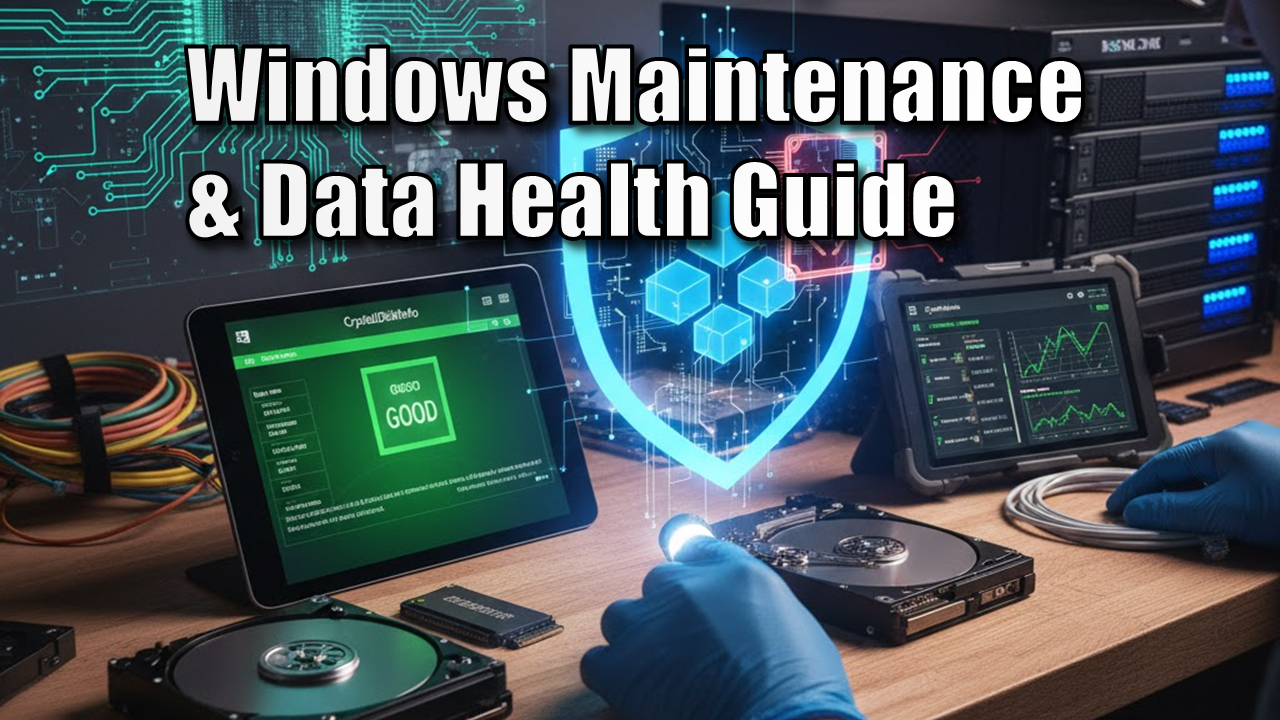
Windows Maintenance & Data Health. As an avid PC enthusiast, I’ve learned over the years that a PC doesn’t just “get slow” for no reason. It’s usually a combination of file system “rot,” neglected hardware health, and optimised settings that have drifted over time.
Whether you are running a high-end gaming rig or a 24/7 home server, this Windows Maintenance & Data Health guide is your “Source of Truth” for keeping your system fast and your data safe.
The Quarterly Checklist
Bookmark this page and run through these 6 steps every 3 months to keep your system in peak condition.
- [ ] Scan S.M.A.R.T. Status: Use CrystalDiskInfo to check for “Caution” or “Bad” drive health.
- [ ] Check for File System Errors: Run
chkdsk /fto ensure your data map is accurate. - [ ] Run System File Repairs: Execute
sfc /scannowto fix corrupted Windows files. - [ ] Optimize Drives: Run the Windows “Optimize” tool (TRIM for SSDs, Defrag for HDDs).
- [ ] Physical Inspection: Check for dust buildup and ensure SATA/Power cables are seated firmly.
- [ ] Verify Your Backup: Ensure your external drive or cloud backup actually contains your latest files.
1. Hardware Diagnostics: Reading the Vital Signs
Before you touch a single software setting, you must know if your drive is physically dying. Software cannot “fix” a scratched platter or a worn-out flash chip.
What is S.M.A.R.T.?
S.M.A.R.T. (Self-Monitoring, Analysis, and Reporting Technology) is the “check engine light” for your storage.
- The Tool: Download CrystalDiskInfo.
- The Metrics: Look at Reallocated Sectors Count. If this is anything other than zero on an HDD, the drive is failing. On an SSD, check Total Host Writes to see how much of the drive’s “life” is left.
- Next Step: If health is low, don’t wait. See my guide on the Best Hard Drives for Home Servers: WD Red vs. Seagate IronWolf to find a high-endurance replacement designed for 24/7 use.
2. Logical Repairs: Fixing “Glitchy” Performance
If your hardware is healthy but Windows is freezing or showing “File Not Found” errors, your Master File Table (MFT)—the index Windows uses to find data—is likely corrupted.
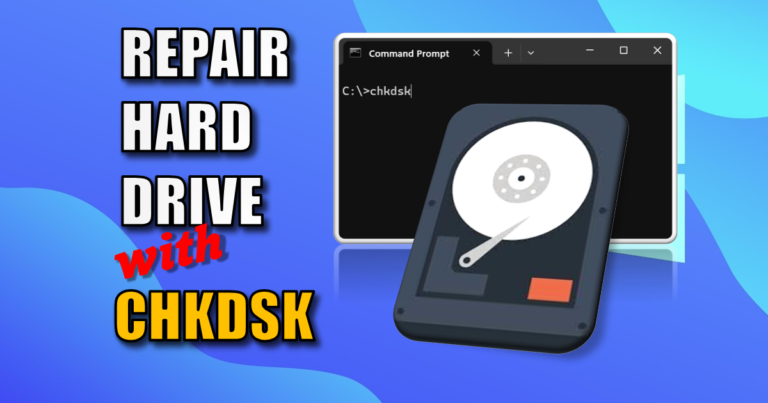
The Power of CHKDSK (Check Disk)
When a PC loses power unexpectedly, the “index” gets out of sync with the “actual data.”
- The Fix: Run
chkdsk /f. This forces Windows to compare the index to the data and fix discrepancies. - The Deeper Fix: If you suspect physical “bad spots” on a spinning hard drive, you need the
/rcommand. - Full Step-by-Step: Read my detailed Windows Guide on How to Run CHKDSK to Repair Hard Drive Bad Sectors for the exact commands and what to do if it gets stuck.
3. Physical Maintenance: The “Built” Side of Health
As a DIYer, I can tell you that heat and vibration kill more drives than software ever will.
- Cable Integrity: Over time, SATA cables can oxidize or wiggle loose. A loose cable mimics a failing drive. If you see “CRC Errors” in your S.M.A.R.T. report, swap the cable first.
- Dust & Airflow: Drives running over 45°C consistently will have a shorter lifespan. Ensure your case fans are clear of dust, especially in “Smart Shed” or garage environments.
- Mounting: Mechanical HDDs should be mounted securely. Vibration causes the read/write head to work harder, leading to tracking errors.
4. Speed Optimization: SSDs vs. HDDs
A common mistake is treating a modern SSD like an old mechanical drive. This can actually shorten the life of your expensive NVMe drive.
TRIM vs. Defragmentation
- Mechanical HDDs: Benefit from Defragmentation. It physically moves file pieces closer together so the physical “read head” travels less.
- SSDs (NVMe/SATA): NEVER defrag an SSD. It adds unnecessary wear. Instead, Windows uses TRIM to wipe unused data blocks in the background.
- Not sure what’s in your PC? Read my comparison: HDD vs. SSD vs. NVMe: Which Drive Type is Right for Your Project?.
5. Setting Up for Success: New Drive Prep
Maintenance starts the moment you unbox a new drive. If you don’t set it up correctly from day one, you’ll be fixing it later.
- GPT vs. MBR: Always choose GPT (GUID Partition Table). It’s the modern standard for drives over 2TB and is more robust against corruption.
- Initialisation: Windows won’t “see” a new drive until you initialize it in Disk Management.
- Walkthrough: I’ve documented the whole process here: How to Initialise and Format a New HDD or SSD in Windows.
Windows Maintenance & Data Health FAQ
Is it safe to run CHKDSK on an SSD?
Yes. It is primarily a read-only diagnostic unless it finds an error.
My drive says “Caution” in CrystalDiskInfo. Should I be worried?
Yes. Treat this as a final warning. Back up immediately and plan a replacement.
Why does CHKDSK get stuck at 11%?
This is normal for large drives. If the disk light is blinking, let it run overnight.
Do I need to initialize my new SSD before installing Windows?
No, the Windows Installer handles this. You only do this for secondary storage drives.
The Pete-Approved Software Stack
| Tool | Purpose | Cost |
| CrystalDiskInfo | Health Monitoring | Free |
| CrystalDiskMark | Speed Benchmarking | Free |
| Macrium Reflect | Full System Backups | Free/Paid |
| TreeSize Free | Finding what is eating your space | Free |
Final Thoughts
Digital maintenance feels like a chore, but it’s the difference between a tool that works and an expensive paperweight. Set a reminder to run this Windows Maintenance & Data Health checklist every quarter. Your future self will thank you.
Subscribe Now!
If you found this Windows Maintenance & Data Health guide interesting and are ready to stop guessing and start troubleshooting your own tech plus smart DIY, head over to the Built By Pete YouTube channel! We’ve got hundreds of other DIY projects and smart home tutorials. Click here to subscribe to the BuiltByPete youtube channel and hit the notification bell so you never miss out on the tips, tricks, and step-by-step guides that will simplify your tech life.