Home Networking 101: The Ultimate Home Networking for Beginners Guide to a Faster, Smarter Home
Learning home networking for beginners is essential in the modern home, where your network is just as vital as your electricity or plumbing. If your network is “clogged,” your 4K Netflix stutters, your Zoom calls drop, and your smart security cameras become useless bricks.
But what actually makes a home network “good”? If you’re confused by the difference between a Modem and a Router, or why your Wi-Fi dies the moment you walk into the garden, this guide is for you.
Home Networking for Beginners: Key Takeaways
The Golden Rule: If a device doesn’t move (TVs, Game Consoles, Desktop PCs), plug it into Ethernet. This frees up Wi-Fi “airtime” for your phones and tablets.
Modem vs. Router: The Modem brings the internet into your house; the Router shares it with your devices. Most ISP boxes do both, but dedicated hardware is usually faster.
Mesh Over Extenders: If you have Wi-Fi dead zones, avoid cheap “Extenders.” Invest in a Mesh Wi-Fi system for seamless coverage without speed drops.
Security First: Never leave your router on factory settings. Change your Admin Password and disable WPS immediately to keep hackers out.
Future-Proofing: If you are buying cables, choose Cat6 Ethernet. It is the modern “sweet spot” for speed and reliability.
The Home Networking for Beginners Jargon Buster
Before we dive into the hardware, let’s translate the tech-speak into plain English.
| Term | What it actually means | Pete’s “Real World” Analogy |
| Bandwidth | The maximum rate you can download data. | The number of lanes on a motorway. |
| Latency (Ping) | The delay before data starts moving. | The time it takes for a waiter to notice you. |
| Ethernet | The technology for “wired” connections. | A “hard-wired” landline vs. a mobile. |
| Switch | Connects multiple wired devices together. | A high-speed power strip, but for data. |
| SSID | Your Wi-Fi Network Name. | The name on the sign outside a shop. |
| DHCP | The system that hands out IP addresses. | A hotel receptionist handing out room keys. |
1. The Big Three of Home Networking for Beginners: Modem, Router, and AP
One of the biggest confusing points in home networking for beginners is the hardware. Most people think ‘The Black Box from my ISP’ is just ‘The Internet.’ In reality, that box usually does three separate jobs:
- The Modem: The “Translator.” It takes the signal from the street (Fiber, Coax, or Phone line) and turns it into digital data.
- The Router: The “Traffic Cop.” It directs data to the right device—ensuring Netflix goes to the TV and emails go to your laptop.
- The Access Point (AP): The “Radio Station.” It broadcasts the Wi-Fi signal.

2. Wired vs. Wireless: The Golden Rule
If you take one thing away from this home networking for beginners guide, let it be this: If it doesn’t move, plug it in.
- Wireless (Wi-Fi): Perfect for phones and tablets. It’s convenient but prone to interference from walls and neighbors.
- Wired (Ethernet): Essential for TVs, Gaming Consoles, and PC Workstations. It provides a “dedicated lane” with zero interference.
Take some time to place your router correctly in your home and get optimal coverage. Have a read of my router placement guide and increase your WiFi range for Free.
Wi-Fi Standards can be confusing for the beginner. Take a look at Everything You Need to Know About Wi-Fi 6, 6E, and the Future of Wi-Fi 7.
Understanding Ethernet Categories
- Cat5e: The old standard. Good for up to 1Gbps.
- Cat6: The “Sweet Spot.” Supports up to 10Gbps and has better shielding. This is what I used for the Smart Shed.
- Cat6a/7/8: Future-proof but thicker and harder to install. Usually overkill for DIY.
Want to know more about Ethernet. Take a look at my Ethernet Cable Standards Explained guide.
3. Mesh Wi-Fi vs. Extenders: Don’t Waste Your Money
When tackling home networking for beginners, a common mistake is trying to fix ‘dead zones’ with cheap £20 plug-in extenders.
- The Extender Problem: They create a second network (e.g., Home_Wi-Fi_EXT) and cut your speed in half because they have to “talk” and “listen” on the same radio.
- The Mesh Solution: Systems like Eero, TP-Link Deco or ASUS AiMesh work as one single network. They intelligently “hand off” your device to the strongest signal as you move rooms.
4. Network Management: Keeping the Pipes Flowing
Once your hardware is plugged in, you need to manage it. This is the difference between a “set it and forget it” system and one you have to reboot daily.
Managed vs. Unmanaged Switches
- Unmanaged: Like a basic power strip. Plug things in, and they work.
- Managed (The Pro Choice): These allow you to log in and prioritize traffic—like giving your Work PC “importance” over the kids’ Xbox.
What are VLANs? (Virtual Local Area Networks)
Pros use VLANs to put “Untrusted” devices (like cheap Smart Bulbs) on one virtual network and “Trusted” devices (Your Banking Laptop) on another. If a smart bulb is hacked, your private data remains isolated and safe.
5. The Power User’s Toolkit: Command Line Basics
When the lights are green but the internet is “broken,” these command-line tools (type these into CMD on Windows or Terminal on Mac) are your best friend:
ping [IP Address]: Checks if a device is “alive” and tells you the latency (delay).ipconfig(Windows) /ip a(Mac): Shows your computer’s current IP address and gateway.tracert [Website]: Shows the exact “hops” your data takes. Perfect for finding where a connection is failing.nslookup [Website]: Checks if your DNS is working (translating names like https://www.google.com/search?q=google.com into numbers).arp -a: Shows a list of every device your computer has recently “talked” to—great for finding the IP of a new camera.
6. What is PoE (Power over Ethernet)?
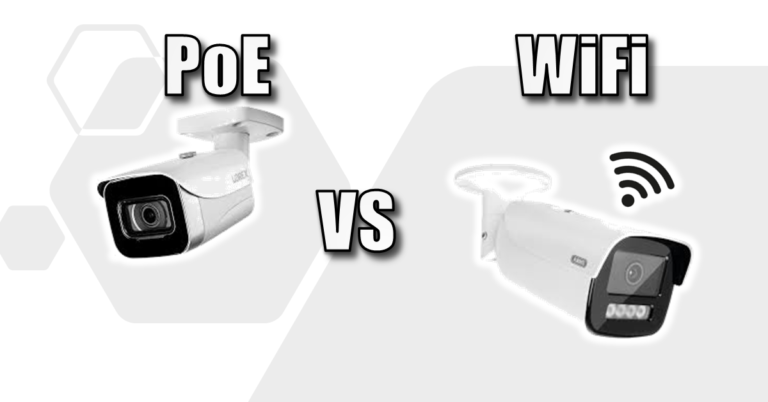
PoE sends both power and data over one Ethernet cable. This is how I powered the security cameras and Wi-Fi points in my shed without needing to install extra plug sockets near the ceiling. If you want to now more, take a look at my Power over Ethernet (PoE) Explained article.
7. Home Security for your Network
You can’t discuss home networking for beginners without mentioning security. We spend a lot of money on smart cameras, high-speed routers, and clever home automation, but how much time do we spend securing them? A single “weak link”—like an old smart bulb or a default password—can give a hacker a doorway into your network and your private data. Following these 5 Steps to Secure Your Network.
8. Your Home Networking for Beginners: 5-Step Quick Start Checklist
If you’re ready to move from theory to practice, follow this sequence to optimize your home setup today:
- Map Your Hardware: Physically locate your Modem and Router. Are they in a cupboard or behind a TV?
- Action: Move your Router to a central, open location at least 1 meter off the ground for better Wi-Fi propagation.
- Audit Your Connections: Identify every device that never moves (TVs, Sky/Virgin boxes, Desktop PCs, Game Consoles).
- Action: Purchase Cat6 Ethernet cables for these devices. Plugging them in frees up “airtime” on your Wi-Fi for phones and tablets.
- Secure the “Front Door”: Most beginners leave their router on factory settings.
- Action: Log into your router (usually
192.168.1.1) and change the Admin Password. This is different from your Wi-Fi password and prevents people from hijacking your settings.
- Action: Log into your router (usually
- Optimize Your Wi-Fi Bands:
- Action: If your router allows it, give your 2.4GHz and 5GHz bands different names. Put your laptops/smartphones on the faster 5GHz and leave “smart home” bulbs on the slower 2.4GHz.
- Run a Baseline Speed Test:
- Action: Run a speed test via Wi-Fi, then again via Ethernet. If the difference is huge, you know where your “clog” is!
Pro Tip: Avoid the “Double NAT” Trap If you buy your own router to improve your home networking for beginners setup, don’t just plug it into your ISP’s box and walk away. This creates “Double NAT,” which can break online gaming and VPNs.
The Fix: Log into your ISP’s modem and turn on Bridge Mode (or Modem Only mode). This tells the ISP box to step aside and let your new, faster router handle all the heavy lifting.
FAQ: Common Questions on Home Networking for Beginners
Why is my Wi-Fi fast in the living room but slow in the bedroom?
Wi-Fi signals (especially the faster 5GHz band) struggle to penetrate solid objects like brick walls, chimney breasts, or large mirrors. Each obstacle the signal passes through reduces the speed. A Mesh System or a wired Access Point in the dead zone is the best way to fix this.
Do I really need Cat6, or is Cat5e okay?
Cat5e is technically fine for 1Gbps speeds, but Cat6 is the smarter choice for new installations. It has better internal shielding against “crosstalk” (interference) and supports 10Gbps over shorter distances. Since the cost difference is now negligible, Cat6 is the “future-proof” standard.
Can I run Ethernet cable outside to my shed?
Yes, but you shouldn’t use standard indoor cable. You need External Grade (PE Sheathed) Ethernet cable. Standard cable will eventually crack due to UV exposure and moisture. For the ultimate setup, run it through a 20mm or 25mm black plastic conduit buried at least 300mm deep.
Is a “Gaming Router” actually worth the extra money?
Mostly, no. “Gaming Routers” often just have fancy lights and prioritized “Quality of Service” (QoS) settings. You can achieve the same results with a decent Managed Switch or a prosumer router (like Ubiquiti or MikroTik) for a fraction of the price. The best “gaming upgrade” is simply a £5 Ethernet cable.
How many devices can one router handle?
Standard ISP routers usually start to struggle once you hit 20–30 devices. In a modern “Smart Home” with bulbs, plugs, cameras, and phones, you can easily hit that limit. If your devices are constantly dropping off, it’s time to upgrade to a dedicated Access Point or Mesh system designed for high-density traffic.
What is the “192.168.1.1” address I keep seeing?
This is typically the Default Gateway—essentially the “Home” address of your router. Typing this into your web browser allows you to access the settings menu where you can change your Wi-Fi name, password, and security settings.
Subscribe Now!
If you found this Home Networking for Beginners guide helpful and are ready to stop guessing and start troubleshooting your own tech plus smart DIY, head over to the Built By Pete YouTube channel! We’ve got hundreds of other DIY projects and smart home tutorials. Click here to subscribe to the BuiltByPete youtube channel and hit the notification bell so you never miss out on the tips, tricks, and step-by-step guides that will simplify your tech life.