How to Check Hard Drive Health in Windows 10 & 11 (3 Easy Ways)
Check Hard Drive Health. Is your computer running slowly, or are you worried about losing your photos and files? Before you rush out and buy a new hard drive or SSD, you should check the health of your existing disk.
Windows actually has powerful diagnostic tools built right in—you just need to know how to find them. In this guide, I’ll walk you through the three methods I use to confirm if a drive is failing or if it just needs a quick software fix.
Watch the Step-by-Step Tutorial
Quick Fix: Check S.M.A.R.T. Status via Command Prompt
- Type cmd in the Windows Start menu and run as Administrator.
- Type:
wmic diskdrive get statusand hit Enter. - If it says “OK”, your drive is healthy. If it says “Pred Fail”, back up your data immediately!
Method 1: The Error Checking GUI (Easiest)
If you aren’t comfortable using “code” or the command prompt, this is the best place to start. It uses the standard Windows interface to scan for file system errors.
- Open File Explorer and go to “This PC”.
- Right-click on the drive you suspect has an issue (e.g., your C: drive).
- Select Properties, then click on the Tools tab.
- Under “Error checking,” click the Check button.
- Select Scan drive. Even if Windows says it hasn’t found errors yet, running this scan will verify the integrity of your files.
Method 2: The WMIC Command (Quickest)
This is a “hidden” command that talks directly to your hard drive’s S.M.A.R.T. system (Self-Monitoring, Analysis, and Reporting Technology). It gives you a simple “Pass/Fail” result in seconds.
- Type CMD into your Windows search bar, right-click it, and select Run as Administrator.
- In the black window, type the following exactly and press Enter:
wmic diskdrive get status - The Result: If it returns “OK,” your drive’s internal hardware monitoring thinks everything is healthy. If you see anything else, it’s time to back up your data!
Method 3: The CHKDSK Command (Most Thorough)
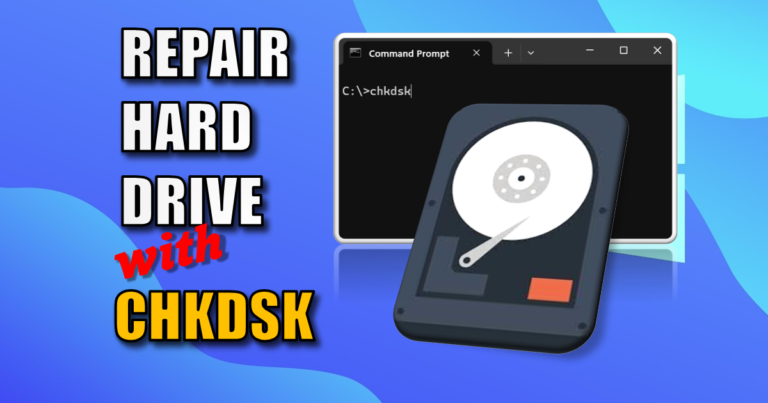
If the first two methods don’t find anything but your PC still feels “glitchy,” you need a deep dive. The Check Disk (CHKDSK) command examines the file system and the physical drive sectors for damage.
- Open the Command Prompt (Admin) again.
- Type
chkdskand press Enter. - Wait for it: This process can take a while depending on the size and speed of your drive—grab a cup of coffee and let it finish.
- The Summary: Once complete, Windows will provide a summary. It will tell you if it found bad sectors or file system errors.
Summary: What do these results mean?
- No problems found: Your hardware is likely fine. Your “slowness” might be caused by too many background apps or a virus.
- Errors repaired: Windows found software glitches and fixed them. You’re good to go!
- Bad Sectors or Failure Warning: This is a hardware issue. Stop using the drive and back up your data immediately.
Check Hard Drive Health FAQ
What are the signs of a failing hard drive?
Clicking noises, slow file access, frequent blue screens, and corrupted files
Does Windows 11 have a built-in drive health tool?
Yes, go to Settings > System > Storage > Disks & Volumes to see health stats
What is S.M.A.R.T. in hard drives
It stands for Self-Monitoring, Analysis, and Reporting Technology—it’s the drive’s internal “check engine” light
More Tech Maintenance Guides:
- Why You Need a Cheap USB Power Meter –“Ensure your external drives are getting enough power!”
- PoE Explained: Powering Your Tech via Ethernet – “The best way to connect reliable cameras and access points.”
Subscribe Now!
If you found this Hard Drive Health guide interesting and are ready to stop guessing and start troubleshooting your own tech plus smart DIY, head over to the Built By Pete YouTube channel! We’ve got hundreds of other DIY, Tech projects and smart home tutorials. Click here to subscribe to the BuiltByPete youtube channel and hit the notification bell so you never miss out on the tips, tricks, and step-by-step guides that will simplify your tech life.