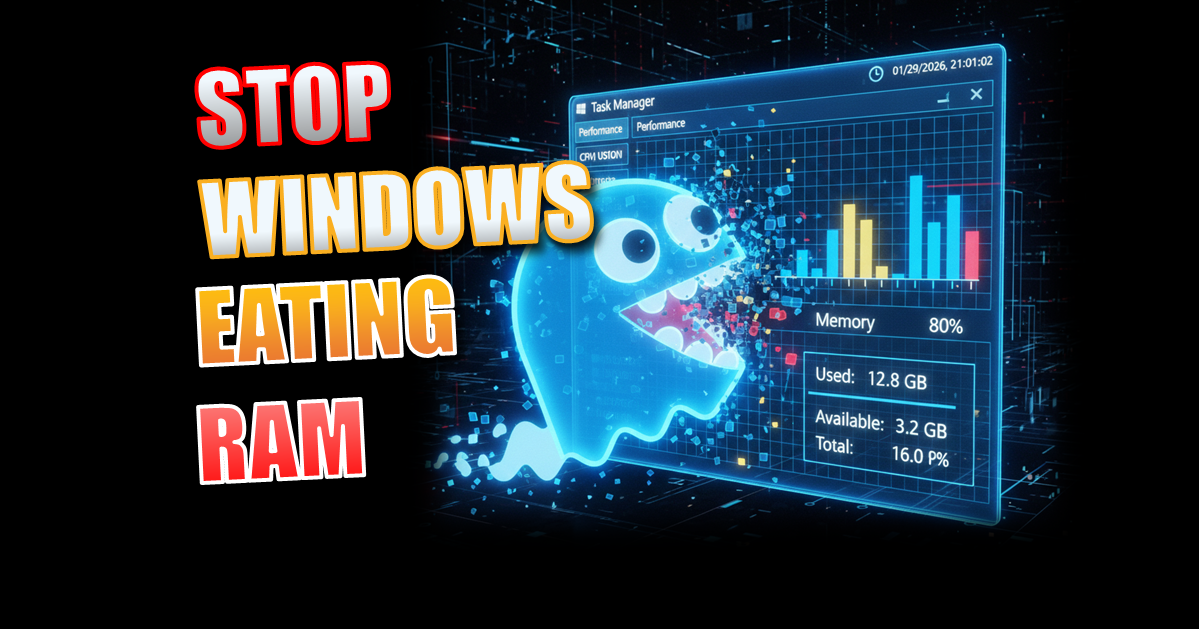
This Hidden Windows Setting is Eating Your RAM: Fix it NOW!
High RAM Usage in Windows. Is your Windows PC feeling sluggish, even when you aren’t running any heavy programs? You might be surprised to learn that Windows is secretly “borrowing” your RAM in the background.
There is a hidden service enabled by default that pre-loads apps you might not even use, eating up gigabytes of memory behind your back. Today, I’m going to show you how to disable the SysMain service and take back control of your system resources.
High RAM Usage in Windows: Key Takeaways
The Culprit: A background service called SysMain (formerly Superfetch) that “borrows” your RAM to preload apps.
The Quick Fix: Run services.msc → Find SysMain → Set to Disabled → Click Stop.
The Result: Frees up gigabytes of “reserved” memory, making your PC feel more responsive, especially on older systems.
Pro Tip: If you have a high-end NVMe SSD, you’ll see more benefit in “free RAM” than raw speed.
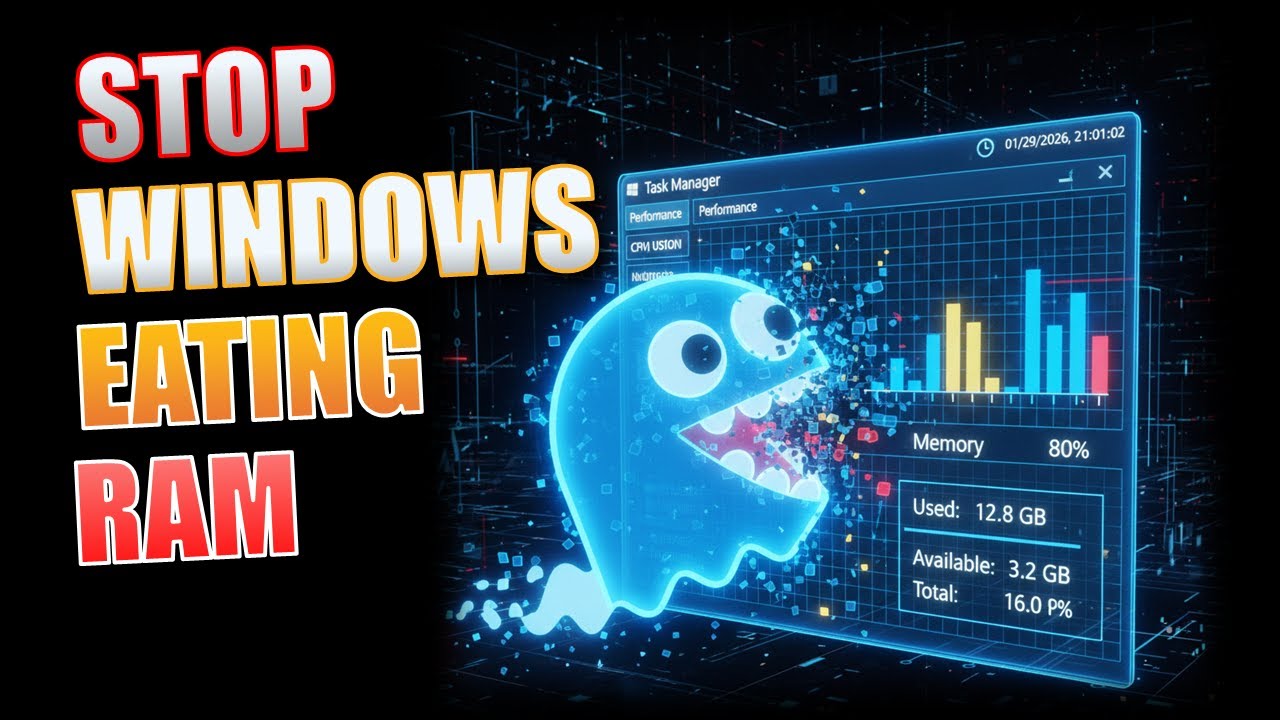
Watch the High RAM Usage in Windows Fix: How to Disable SysMain
What is SysMain (formerly Superfetch)?
SysMain is a Windows service designed to improve system performance by pre-loading frequently used applications into your RAM.
While the intention is good, it can often backfire. By “reserving” this memory, Windows leaves less RAM available for the tasks you are actually trying to perform. If you find your PC is constantly at 80% or 90% idle RAM usage, SysMain is usually the culprit.
How to Fix High RAM Usage in Windows – Disable SysMain (Step-by-Step)
Follow these steps to permanently stop the service from eating your system memory:
1. Open the Services Menu
Press the Windows Key + R on your keyboard to open the Run command. Type services.msc and hit Enter.

2. Locate the “SysMain” Service
Scroll down the alphabetical list until you find SysMain (near the bottom). You will likely see that its status is “Running” and the startup type is “Automatic.”
3. Change Startup Type
Double-click on SysMain to open the Properties window. Change the “Startup type” dropdown menu to Disabled.4. Kill the Process

Before clicking OK, you need to stop the version currently running. Click the Stop button. Once the service status says “Stopped,” click Apply and then OK.
5. Restart Your PC
To ensure all reserved memory is released, restart your computer. Open your Task Manager (Ctrl + Shift + Esc) and you should see a noticeable drop in your idle RAM usage.
Performance Comparison: Is this for you?
| System Type | Impact Level | Result |
| Old PC (HDD) | High | Significant boost in boot times and app responsiveness. |
| Mid-Range PC | Medium | Frees up memory for gaming and multitasking. |
| High-End PC (NVMe SSD) | Low | Minimal speed boost, but still frees up raw RAM capacity. |
Pro Tip: How to Hunt Down Other “RAM Hogs”
While SysMain is a major culprit for idle RAM usage, other applications might be eating your resources while you work. Here is how to find and kill them using the Task Manager.
Step 1: The “Memory” Sort
Press Ctrl + Shift + Esc to open the Task Manager. If you see a small window, click “More Details” at the bottom.
- Click the Memory column header. This will sort every running program from “highest usage” to “lowest.”

Step 2: Watch Out for “Browser Bloat”
You might notice Google Chrome or Microsoft Edge at the top of the list with 10 or 20 processes.
- The Fix: Instead of closing the whole browser, look for tabs you aren’t using. Each open tab is essentially a separate program eating your RAM. Use an extension like Auto Tab Discard to “hibernate” tabs you aren’t currently looking at.
Step 3: The “Startup” Tab
Click the Startup tab at the top of the Task Manager window.
- Look for programs with a “High” Startup Impact.
- If you see things like Steam, Spotify, or Cortana that you don’t need the moment you turn on your PC, right-click them and select Disable. This won’t uninstall them; it just stops them from stealing RAM until you actually open them yourself.
Windows Optimization Checklist
If you’ve disabled SysMain and still want more speed, try these:
- [ ] Disable Startup Apps: Use Task Manager to stop apps like Spotify or Steam from opening on boot.
- [ ] Debloat Windows: Remove pre-installed “junkware” apps from the Start menu.
- [ ] Check for Malware: Run a scan with Windows Defender to ensure a virus isn’t the real RAM hog.
- [ ] Hardware Upgrade: If you have less than 8GB of RAM, no amount of software fixing will beat a physical RAM upgrade!
High RAM Usage in Windows FAQ
Is it safe to disable SysMain?
Yes. Disabling SysMain will not harm your computer. It simply stops Windows from “guessing” which apps you want to use next.
Will this delete my files?
No. This only changes how Windows manages your system memory (RAM). Your files and photos are completely safe.
Can I turn it back on?
Absolutely. Simply follow the steps above but change the startup type back to “Automatic” and click “Start.”
Further Reading
- The 3-2-1 Backup Strategy: The Ultimate Guide to Protecting Your Digital Life
- The Ultimate Windows Maintenance & Data Health Guide
- Best Hard Drives for Home Servers: WD Red vs. Seagate IronWolf vs. Enterprise
- HDD vs. SSD vs. NVMe: Which Drive Type is Right for Your Project?
Subscribe Now!
If you found this High RAM Usage Windows guide helpful and are ready to stop guessing and start troubleshooting your own tech plus smart DIY, head over to the Built By Pete YouTube channel! We’ve got hundreds of other DIY projects and smart home tutorials. Click here to subscribe to the BuiltByPete youtube channel and hit the notification bell so you never miss out on the tips, tricks, and step-by-step guides that will simplify your tech life.