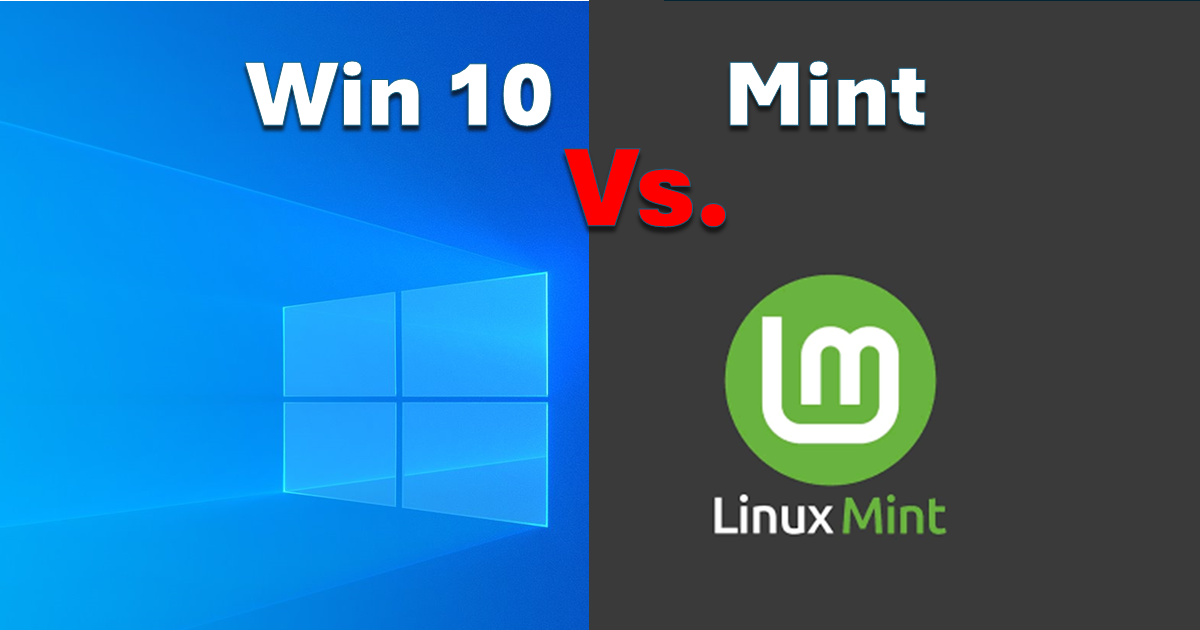
Windows 10 vs Linux Mint in 2026: The Best Choice for Your Old PC?
Windows 10 vs Linux Mint. If you’ve read my guide on staying secure on Windows 10 for free, you know you have until October 13, 2026, to make a definitive decision. While the Extended Security Update (ESU) program provides a temporary shield, it is effectively a dead-end street.
For many, the push toward Windows 11 hardware requirements is the final straw. In 2026, Linux Mint 22.3 “Zena” has become the primary “life raft” for millions of PCs that Microsoft has left behind. But is it actually the right move for your specific machine? Let’s look at the facts.
The 2026 Reality Check
As of early 2026, we are officially in the “Bonus Year” for Windows 10. The newly released Linux Mint 22.3 “Zena” is built on a modern foundation—the Ubuntu 24.04.3 LTS package base—meaning it will receive security patches and updates until April 2029.
By switching, you aren’t just getting a faster desktop; you are gaining nearly three extra years of official support beyond what Microsoft offers for Windows 10.
The Stats: Windows 10 vs Linux Mint XFCE
For “Legacy Tech,” RAM and disk space are the primary bottlenecks. Here is how the two operating systems compare on a typical 10-year-old laptop with 4GB of RAM:
| Feature | Windows 10 (22H2) | Linux Mint 22.3 (XFCE) |
| Idle RAM Usage | ~2.1 GB | ~600 MB |
| Disk Space Needed | 30 GB+ | ~15 GB |
| Updates | Forced & Slow | Background & Instant |
| Kernel Version | 10.0.19045 | 6.14 (Modern HW Support) |
| Hardware Support | Ends Oct 2026 | Supported until 2029+ |
A Note on Gaming (Proton in 2026)
One of the biggest authority boosts for Linux recently has been Valve’s Proton. In my testing, about 85% of the top Steam library titles ran “Plug-and-Play” on Mint. However, a word of warning for Built By Pete readers: If you play games with kernel-level anti-cheat (like Valorant or League of Legends), those titles still do not support Linux. If those are your daily games, stay on Windows 10 for now.
Expert Tip: The Wayland Transition
In 2026, the big technical conversation in Linux is the move from the aging X11 display server to Wayland.
- The Benefit: Linux Mint 22.3 features Cinnamon 6.6, which includes significantly improved (though still experimental) Wayland support.
- Why it matters for you: If you have an older Intel or AMD graphics chip and experience “screen tearing” or laggy animations on Windows, switching to the Wayland session in Mint can often fix these issues instantly. You can choose this at the login screen by clicking the small icon next to your username.
The “Live USB” Trick: Try Before You Buy
One of the coolest things about Linux is that you can try it without deleting Windows.
1. Download the Linux Mint 22.3 ISO.
2. Flash it to a USB drive using Rufus.
3. Boot your computer from that USB.
You will be running a full version of Linux entirely from the thumb drive. Your hard drive stays untouched. If your WiFi works and the speed feels snappy, you’re ready to make the jump.
Choosing Your Flavor: The Three Editions of Mint
While every version of Mint 22.3 shares the same rock-solid “under the hood” components, the “Desktop Environment” (the part you see and click) changes how much work your CPU and RAM have to do.
1. Cinnamon Edition (The Flagship)
- Best for: PCs from 2018 or newer with at least 8GB of RAM.
- Why it’s the “best” version: This is Mint’s own home-grown desktop. It features the most polish, the best looking animations, and the most modern features like Cinnamon 6.6, which includes the latest progress on Wayland support. It is the most “Windows 11-like” in terms of features but follows a Windows 7-style layout.
2. MATE Edition (The Middle Ground)
- Best for: Laptops from 2014–2017 or users who miss the “Classic” Windows feel.
- Why it’s better than Cinnamon for old tech: MATE (pronounced Mah-Tay) is a continuation of an older desktop style (GNOME 2). It uses significantly less GPU power than Cinnamon, meaning your laptop will run cooler and your battery will likely last longer. It strikes a perfect balance between being lightweight and looking modern.
3. XFCE Edition (The Resurrection Specialist)
- Best for: Anything with 4GB of RAM or less, or “ancient” 10+ year old hardware.
- Why it’s the king of legacy tech: XFCE is legendary for being incredibly “lean.” It cuts out almost all visual fluff to ensure your CPU cycles go toward your apps (like your web browser) rather than drawing pretty windows. If your PC feels like it’s “struggling to breathe” on Windows 10, XFCE is the version that will make it feel snappy again.
2026 Comparison Table: Which Mint for Your Machine?
| Feature | Cinnamon (Flagship) | MATE (Classic) | XFCE (Lightweight) |
| User Interface | Modern & Polished | Traditional & Rugged | Simple & Functional |
| Idle RAM Usage | ~750 MB | ~560 MB | ~510 MB |
| CPU Demand | Moderate (4-5% idle) | Low (1-2% idle) | Extremely Low (<1% idle) |
| Visual Effects | High (Shadows, Blur) | Moderate | Minimal |
| Best Hardware | Multi-core CPU + SSD | Dual-core CPU + SSD | Dual-core + HDD/SSD |
| Wayland Support | Experimental (6.6) | Early Stages | Early Stages |
Pete’s Pro-Tip: The “SSD Rule”
Regardless of which version you choose, my #1 recommendation for anyone switching to Linux in 2026 is to spend $20 on a cheap SATA SSD. Even the “heavy” Cinnamon edition will run twice as fast on a cheap SSD as the “light” XFCE version does on an old spinning hard drive.
If you’re keeping the old spinning drive, XFCE is your only real choice for a smooth experience.
Final Verdict
If your PC is starting to feel like a “dinosaur” under the weight of Windows 10’s background processes, Linux Mint 22.3 “Zena” is a breath of fresh air. It is faster, more private, and officially supported long after Microsoft pulls the plug on Windows 10.
If you decide to stick with Windows but want to speed it up, check out my Ultimate Windows Maintenance Guide.
Further Reading
- Don’t Upgrade Yet: How to Get FREE Windows 10 Security Updates Until October 2026
- How to Run CHKDSK to Repair Hard Drive Bad Sectors (Windows Guide)
- How to Check Hard Drive Health in Windows 10 & 11 (3 Easy Ways)
- DIY Network Status Monitor: Build a Colour-Coded PING Tool in 5 Minutes
Windows 10 vs Linux Mint : Frequently Asked Questions (FAQ)
1. Will my existing Windows files be deleted if I switch?
Only if you choose the “Erase Disk” option during installation. If you choose to Dual Boot, Linux Mint will live alongside Windows 10 on a separate partition, and you can even access your Windows photos and documents from within Linux. However, I always recommend a full backup before any OS change.
2. Can I run Microsoft Office (Word, Excel, PowerPoint) on Linux?
You have three options in 2026:
Web Apps: Use the free online versions of Office 365 in Firefox or Chrome.
LibreOffice: Pre-installed on Mint; it’s free and compatible with .docx and .xlsx files.
OnlyOffice: A great alternative that looks almost identical to the Microsoft ribbon interface.
3. What happens if I have a “Must-Have” Windows app that isn’t on Linux?
In 2026, compatibility is better than ever. You can use Wine 11 or Bottles to run many .exe files directly. For mission-critical software, tools like WinApps allow you to run Windows apps in a “hidden” virtual machine so they appear as regular windows on your Linux desktop.
4. Does Linux Mint 22.3 support my modern hardware (WiFi 6, NVMe)?
Yes. “Zena” runs on Kernel 6.14, which includes the latest drivers for modern hardware. It also features a “Driver Manager” that automatically detects and installs proprietary drivers for NVIDIA graphics cards and Broadcom WiFi chips with one click.
5. Is Linux Mint really more secure than Windows 10?
Historically, yes. Because Linux is built on a “permissions-based” architecture, it is much harder for malware to execute without your explicit password. Furthermore, since Mint 22.3 is supported until April 2029, you will receive critical security patches for nearly three years after Microsoft stops supporting Windows 10.
Subscribe Now!
If you found this article for Windows 10 vs Linux Mint interesting and are ready to stop guessing and start troubleshooting your own tech plus smart DIY, head over to the Built By Pete YouTube channel! We’ve got hundreds of other DIY projects and smart home tutorials. Click here to subscribe to the BuiltByPete youtube channel and hit the notification bell so you never miss out on the tips, tricks, and step-by-step guides that will simplify your tech life.